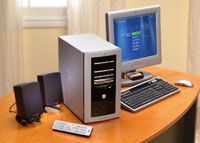
For years, the home tech landscape was brutally divided. You had your computers. You used those for browsing, email, school papers, and the messy business of downloading MP3s or editing video. Then you had your entertainment hardware. That was for watching TV, recording shows, and listening to physical CDs. The lines were drawn in stone. Electronics companies noticed the bleed-over, of course. They tried to bridge the gap with clunky products like WebTV and early digital media servers. There was also the Sony Vaio, an early attempt at a “media-center PC” that felt more like a compromise than a solution.
Now, the strategy has shifted. The new wave of hardware doesn’t just nudge the boundaries. It obliterate them.
The Definition of Modern Integration
Skip the small steps. The current approach aims for total integration. A modern media-center PC is built for the home theater environment first. It supports high-definition audio and video natively. Yet it retains every function you expect from a standard desktop. It’s not a toy. It’s a powerhouse disguised as a living room appliance.
What actually makes it a “media center”?
It’s about control. And convenience. These machines are designed to be used from across the room. They replace the remote with a keyboard, a mouse, or a specialized controller. They handle the heavy lifting of playback while serving up content through a clean, large-screen interface.
Where does it fit in your home?
It slots directly into your entertainment setup. It sits alongside your TV, sound system, and streaming boxes. It doesn’t replace them. It unifies them. You can watch live TV. Record it. Stream movies from the cloud. Play music from your local library. All from one interface. All on the same screen.
“Media-center PCs are made for the home theater in terms of audio and video support, and they maintain all of the functions we’ve come to expect from a home computer.”
This isn’t just about watching a movie. It’s about managing your digital life in one place. The overlap is gone. The separation is gone. What’s left is a single point of control for everything visual and auditory in your house.
Why should you care?
Because the fragmentation of content is exhausting. You have subscriptions for video. Apps for music. Devices for gaming. A dedicated media-center PC cuts through the noise. It centralizes your assets. It simplifies your setup. It lets you focus on the content, not the hardware.
The question isn’t whether you need one. The question is whether your current setup can match its flexibility.
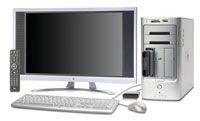

At its core, a media-center PC is just a marriage of convenience. It’s your standard computer tangled with an A/V receiver. The goal? To become the beating heart of your home theater.
These machines come prepped for entertainment. You get progressive-scan DVD playback. Over-the-air HDTV support. Surround-sound inputs that actually matter. And quiet operation. Some even ditch fans for silent, passive cooling.
Inside one box, you get everything digital media throws at you.
The Full Suite of Functions
It’s not just about watching Netflix. The hardware handles a massive range of tasks under one roof.
Computing Basics
- Internet browsing
- Word processing
Video Management
- Stream internet video to a big-screen TV
- Watch, create, and burn DVDs
- Record and watch live TV (yes, it acts as a DVR)
- View, edit, and send digital photos
Audio Control
- AM/FM radio recording (up to 30 minutes, just like TV)
- Download and play MP3s through home-theater speakers
- Play, rip, create, and burn CDs
Storage
A typical unit boasts 500 GB to 1 TB of space. That’s for music, movies, and photos.
You control this beast remotely. Navigate through onscreen menus from the couch. Or use a keyboard and mouse if you’re sitting at the desk.
Building vs. Buying
There are two paths to a media-center PC.
- Buy a prebuilt home-theater PC.
- Upgrade your current rig.
If your PC is less than five years old, you can probably DIY this. You’ll need to get your hands dirty with the motherboard. The results might not match a purpose-built machine. But you save cash.
Let’s look at how to build your own.
It’s a Media-center World
Microsoft isn’t the only player.
Want to see what else is out there? Check the XboxMediaCenter Project or the Macintosh Media Center Project.
Prefer a receiver with storage? Media servers are everywhere. Some offer massive features like 2 terabytes of storage.
Look at the Denzel Home Theater Media Server or the ViewVox 1000.
They’re just examples. The landscape is shifting.
Building your own media center usually costs less than buying a factory-assembled unit. You can get a decent system for under $1,000. It’s a solid route if you just need a box that plays movies and looks good in your living room.
The hardware requirements aren’t heavy if you already have a display and decent speakers. You’re mostly looking at upgrading the sound card and adding storage. Video libraries are huge. An external hard drive works fine for bulk storage.
Sound Quality
Your sound card needs to match your speakers. Whether you want stereo, digital surround, or multichannel analog, the card must support it. For true home-theater audio, pair a 24-bit card with a surround system. It sounds excellent. If you’re connecting to a receiver, look for coaxial or optical digital outputs. That’s where the best results come from.
Storage Needs
Aim for 400 to 500 gigabytes. If you plan to record HDTV, you’ll need more. If you aren’t an audio/video junkie, you can use higher compression and need less space.
Essential Add-ons
You also need specific peripherals to make this work.
- A TV tuner, ideally with DVR functions. This lets you record shows and skip commercials. You can buy a standalone tuner or upgrade your video card to one with a built-in tuner.
- An AM/FM radio receiver.
- A remote-control setup. This includes a transmitter and receiver. If you use an external receiver for your speakers, you’ll need a control cable to connect the PC to it.
Technically, that’s all you need. Your PC already has CD and DVD drives. Just connect the PC to your TV and speakers using the available outputs. But for a truly integrated experience, you need media-center software.
Why Media-Center Software Matters
The advantage of software like Meedio Pro, Sage TV, InterVideo Home Theater, or Beyond TV with Beyond Media is the interface. These packages let you connect accessories and control everything through one screen.
You can stream music to other computers. Transfer data to portable devices. View digital photos on the big screen. Most packages also offer a “theater view” mode for regular monitors. It adjusts the UI so it’s readable from across the room.
The Windows XP Media Center Edition Option
The most complete package you’ll find is Windows XP Media Center Edition (xpMCE). Until recently, this OS was locked to PC manufacturers. Now you can buy it and use it as the core of your upgrade.
It’s tricky. xpMCE presupposes specific hardware support. That makes a DIY upgrade slightly more complicated. But it’s doable.
If you want to skip the headache, look for complete upgrade kits. The D.Vine D2 Quiet Media Center is one example. It comes with a chassis, fanless cooling, motherboard, processor, and xpMCE. It costs about as much as a less-expensive pre-built system.
When DIY Stops Making Sense
Here’s the catch. Once you want serious bells and whistles, DIY stops being cost-efficient.
If you want seamless integration. Near-silent operation. A unit that actually upgrades your home theater instead of just working with it. You’re probably looking at a media-center PC built by the manufacturer.
Need a Little Help?
Check out PCMagazine’s Build a Home Entertainment PC, ExtremeTech’s Build Your Own Windows Media Center PC, or Macworld’s Do-it-yourself multimedia for guides.
Pre-built Media-center PCs
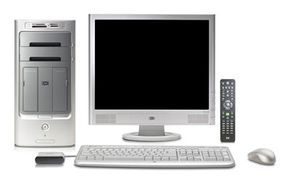

You don’t need a rack of boxes anymore. Computer manufacturers spent years building media-center PCs from the ground up to fit directly into your home-theater ecosystem. The promise is simple: one display. One remote. One CPU.
Sit on the couch in the den. Send an email. Draft a work proposal. Queue up an MP3 playlist to blast through your surround-sound system. All of it happens from your living room sofa. The benefit here is brutal simplicity. You might need to buy a TV tuner and remote, but most systems include those in the box. Setup is just plugging your TV and speakers into the unit. That’s it.
Some units offer enough ports to add an external DVD or CD player if you’re stubborn about physical media. But these PCs are designed to be your all-in-one hub. They replace your stereo. Your DVD player. Your home computer. Your photo viewer. Your 500-GB hard drive. Your PC gaming rig. Your A/V receiver.
The Operating System Battle
Most of these early systems ran on Windows XP Media Center Edition (XP MCE). It was the standard. But plenty of products took a different route. They ditched Microsoft’s custom interface for separate operating systems paired with dedicated home-theater software like Sage TV or Meedio Pro.
You can find home-theater PCs from almost every major computer manufacturer. Most look like regular PCs. You get the CPU tower. The monitor. The keyboard. It blends in with a standard desk setup, not a living room.
Form Factors That Fit the Den
Some manufacturers realized living rooms hate towers. They adopted a more living-room-friendly form factor. Imagine a CPU shaped more like an A/V receiver than a box.
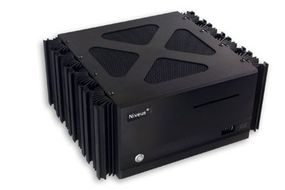

The Computer You Mistake for Art
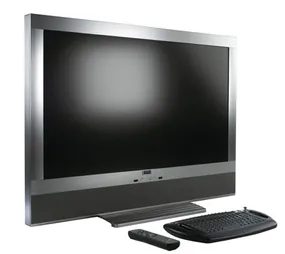
Then you hit the real outliers. Take the Elonex Lumina for example. It didn’t just sit next to your TV. It was the TV. The CPU lived inside the display housing. To anyone walking into the room, it looked like nothing more than a sleek flat-screen panel. No tower. No mess of cables snaking across the floor. Just glass.
But crack open the facade, and you’d find a full-blown PC living in the wall.
The engineering ambition here was staggering. Inputs and outputs for both PC connectivity and home theater systems were tucked onto the side and rear panels. You weren’t just watching a screen. You were running an entire operating system behind it.

The Price of Entry
Let’s be real about the cost. If you want a top-tier system, you are looking at spending between $3,000 and $7,000. That number jumps closer to the seven-grand mark if you also want a fancy new flat-panel display to complete the home-theater look.
Take the Gateway “ultimate” Media Center PC priced around $3,000. It packs an Intel Pentium D 930 dual-core processor, a 500-GB hard drive, and an NVIDIA GeForce 7800 graphics card. It handles 24-bit DVD-Audio playback with full surround sound. A TV tuner is not included; that costs extra.
For those with deeper pockets, the Niveus Denali Limited Edition sits at about $6,000. You get four TV tuners, a massive 1-terabyte hard disk, and fanless cooling because silence matters in a living room. The external 200-disc CD changer is another line item on the bill.
Focus on xpMCE
Since systems running Windows XP Media Center Edition are currently the most popular rendition of the home-theater computer, we will focus there. You might see these called “Media Center PCs.” Other systems use that name generically. When we capitalize “Media Center” in this guide, we are specifically talking about a computer running Windows XP Media Center Edition.
What It Actually Does
A Media Center PC does everything a regular Windows XP system does. It’s not a toy. It handles standard computing tasks while adding home-theater functions. The next section breaks down exactly what this type of system can do for you and the steps required to set it up.
The Apple Alternative
Apple’s newer iMacs. They are not marketed as “media centers.” They just have a lot of the same features you find on a PC.
All 2006 iMacs come with Front Row software. This lets you view photos, watch DVDs, and browse your music collection in a widescreen “theater” view. You can connect your TV as the computer display. The Apple remote allows navigation from across the room.
See Apple: iMac to learn more.

The 2005 Windows XP Media Center Edition isn’t just an operating system. It is arguably the peak of media-center software design. It works directly with your hardware to turn a standard PC into a full home-theater receiver. You get media storage, navigation, organization, and integration all in one box.
A typical setup gives you:
- Standard Windows XP programs
- DVR functionality with a program guide
- Local antenna support for digital TV and HDTV
- Progressive-scan DVD playback
- MP3 access from your hard drive or online
- Photo viewing and editing tools
- CD and DVD burning (data, audio, and video)
- Movie search functions for your TV provider and online databases
- On-demand music and movies
- Data syncing with smartphones, PDAs, or MP3 players
- Control via remote, keyboard, or mouse
You need more than just the computer. To build a base-level Media Center, you need additional components.
- A display (TV or monitor)
- A TV signal source (antenna, cable, or satellite)
- Keyboard and mouse (wireless is better)
- Speakers (PC, stereo, or surround)
- Remote control and receiver
- TV tuner
- Broadband internet connection
- Various A/V cables
If you can hook up an A/V receiver, you can handle a Media Center PC. The process breaks down into five primary steps for a basic setup.
Connecting Your Display
Your display type doesn’t matter. You can use a CRT, an LCD, a projection set, or even a computer monitor. You just need the right cable.
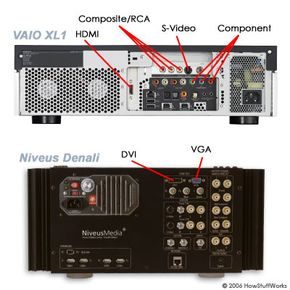
Media Center PCs come with standard A/V inputs. You will find Composite, S-video, and Component Video. They also have PC-centric ports like VGA, DVI, or HDMI. You choose the video quality you want or what your TV supports. Plug one end into the TV input. Plug the other into the PC output. That is it.
Connecting Your TV Signal
Watching TV requires a connection between your signal source and the PC.
For an antenna or regular cable signal, connect the cable jack or antenna output directly to the PC input. The PC has coaxial inputs for this.
If you use a digital-cable or satellite set-top box, you have two connections to make. First, from the wall output to the set-top box input. Second, from the set-top box output to the PC input. You also need an infrared connection to control the set-top box with the Media Center remote.
Here is the catch. A Media Center PC only supports over-the-air digital or high-definition signals. These are free signals received via antenna. Subscription-based digital and HDTV signals require decoders installed by set-top box manufacturers due to DRM issues.
You can still watch subscription content, but you will be limited to standard TV quality.
Connecting Your Speakers
The audio connection depends on your existing gear.
If you use PC speakers, the process is identical to a standard computer setup. You can also use your current receiver as a pass-through.
For a stereo setup, make a single connection between the PC and the audio receiver. Use a stereo-mini-to-stereo-RCA cable. Connect the stereo-mini end to the PC’s audio-out. Connect the stereo-RCA ends to the CD inputs on your receiver. Set the receiver to “CD.”
A surround-sound setup is slightly more complex. Media Center PCs use different sound cards. You need a card that supports your planned audio configuration.
Most cards support at least 5.1-channel and likely up to 7.1-channel surround. They handle formats like DTS and Dolby Digital. You can connect for either digital or multichannel-analog surround.
The outputs on a typical sound card reflect these capabilities. You just need to match the ports to your receiver’s inputs.
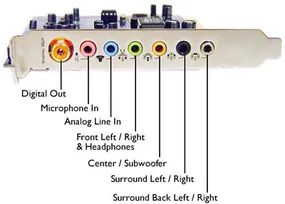

Hooking up the hardware isn’t rocket science, but it does require you to match your outputs to the right inputs. You’re connecting your PC to your receiver. If you want a single digital connection, you have two choices: coaxial or Toslink optical cable. Go the analog route instead, and you’ll need stereo-mini-to-stereo-RCA cables. Don’t forget to actually switch your receiver to whichever input you plugged into. It’s easy to skip this step and wonder why there’s no sound.
Getting Online
You can’t browse the Web, send e-mail, or download a TV program guide without an Internet connection. Streaming media requires broadband. The method is identical to setting up any other desktop or laptop. If you already have a cable or DSL connection running through your home, the Media Center PC just joins the existing network.
For a living room setup, wireless is the way to go. It keeps the mess of Ethernet cables out of sight. You can look into how WiFi works and home networking basics if you’re unsure about signal strength or router placement.
Configuring the System
Start from the Start menu. Click “Settings” to access the media configuration options. The system guides you through every step using wizards. If you’ve used a Windows PC before, these will feel familiar. You only need to provide a few key details during the basic setup.
- Video Source : Are you using a set-top box? Use the TV Signal Setup Wizard. It needs to know if you’re plugged into standard cable, digital cable, or satellite.
- Audio Output : Are your speakers non-Media Center compliant? The Speaker Setup Wizard handles the audio decoder. You have to define your setup: receiver connection, stereo vs. digital surround vs. multichannel analog. Tell it the size of your speakers and if a subwoofer is in the mix.
- TV Service Provider : The Media Center PC generates a free daily program guide. It updates via your Internet connection. Microsoft downloads listings from your provider for up to 14 days out. The wizard asks for your zip code, lists local providers, and lets you pick yours.
Once that’s done, the basic setup is complete. But that’s just the surface. There are advanced features and extras you can layer on once you’re comfortable with the interface.
Windows XP Media Center Edition: Extras and Advanced Functions
Now you’re sitting in the den. A PC-based home theater surrounds you. You have TV programming, a sound system, Internet access, and your entire digital library of movies, music, and photos. The ability to access, input, output, and combine these elements is virtually unlimited.
Here are a few specific ways to expand what you can do.
Downloadable plug-ins
Microsoft allowed third-party developers to create add-ons. These aren’t just gimmicks; they extend functionality.
- mce Weather : Provides real-time local weather reports directly in the interface.
- My Movies : Lets you download metadata for your collection. Organize by title, director, keyword, or genre.
- Media Center Karaoke : Turns the whole setup into a karaoke station.
- MCE Caller ID Client : Receives caller-ID data from a PC connected to your phone line and displays who is calling onscreen.
Adding multiple monitors
You aren’t stuck with just one screen. Media Center supports two displays simultaneously. Think of a TV and a computer monitor running side-by-side. They can show different views. You could watch a movie on the large screen while surfing the Web on the smaller one. Most video cards already handle this. You just need to configure the dual outputs using the xpMCE setup guide.
Multiple TV tuners
Hardware determines what you can record. The more tuners you install, the more you can multitask.
- Two tuners : Watch one pre-recorded show from the hard drive while recording two live broadcasts.
- Three tuners : Watch one pre-recorded show while recording three live ones.
- Three tuners and two displays : Watch two live shows at once while recording a third.
The math is simple. More hardware equals more simultaneous streams.
Media Center Extender
One PC doesn’t have to dominate the whole house. You can use one or more Media Center Extender devices. These output signals from the main Media Center PC to other displays or even an Xbox 360 elsewhere in the home. It’s a networking system built specifically for this purpose. For full instructions, you’d look to the Microsoft Windows XP Media Center Edition 2005 documentation.
The Future of Integration
The Windows XP Media Center Edition system packs the power of a PC and the role of a home-theater receiver into one box. If you want to integrate your digital life, it’s a solid choice. But the technology was still in its adolescence. Software-based integration might just be a starting point. Hardware developments are what will truly direct the future of the home theater.
Intel was already working on a new processor platform called Viiv. It specifically targets the needs of home-theater PCs. The goal was to standardize the hardware aspects of the market. This way, consumers and developers could rely on a known set of parameters. PCs with “Viiv inside” were scheduled to start shipping by mid-2006.
The landscape was shifting. Software would adapt, but the silicon underneath was changing too. For more on media-center PCs and related topics, you’d check the links on the next page.
Frequently Answered Questions
What does a media center have?
A media center consists of a computer, a TV, and a sound system.
How does a media center work?
It’s a computer that stores and organizes digital media like music, photos, and videos. You play that media on the TV, stereo, or other connected devices.
What is the best computer for media?
You want a powerful processor, plenty of RAM, and a large hard drive. Those are the non-negotiables.
The market for do-it-yourself home entertainment solutions didn’t just appear out of thin air. It evolved through a mix of hardware hacks, software tweaks, and a lot of trial-and-error by early adopters who wanted more control than commercial boxes offered. If you are still looking into building a home theater PC, you are entering a space defined by specific tools and dedicated communities.
Essential Software and Hardware Foundations
Before you even touch the wiring, you need to understand the software ecosystem. The landscape in the mid-2000s was shifting rapidly toward unified media management.
- J River Media Center emerged as a strong contender for those wanting a polished, remote-friendly interface without the bloat. It handled large libraries well and integrated smoothly with IR remotes.
- SageTV Media Center V4 took a different approach, focusing heavily on DVR functionality and flexible front-ends. It was less about pretty graphics and more about robust recording capabilities.
- Windows XP Media Center Edition 2005 was Microsoft’s official answer. It came pre-installed on many systems but could also be upgraded. It offered tight integration with Windows Media Player and basic DVR features, making it a safe, if somewhat locked-down, choice for beginners.
- Medio positioned itself as a media hub, comparing its feature set directly against competitors. Its focus was on ease of use for non-technical users who still wanted centralized control.
On the hardware side, the debate often centered on platforms.
- ExtremeTech provided guides on building Windows-based Media Center PCs, focusing on component selection and cooling.
- The Macintosh Media Center Project and Macworld’s guides explored whether macOS could handle high-definition playback and remote control. While possible, it often required more tweaking than the Windows route.
- Apple iMac systems were frequently cited for their aesthetics and build quality, though their raw processing power for video transcoding sometimes lagged behind custom-built rigs.
- The XboxMediaCenter Project showed how to repurpose console hardware, proving that you didn’t always need a dedicated PC case for a living room entertainment hub.
Where to Find Technical Details and Comparisons
Finding reliable data is half the battle. You don’t want to buy a sound card that doesn’t support AC3 passthrough or a remote that has a dead battery within a month.
Sources like PCMagazine offered print-quality reviews that cut through marketing hype. Their articles on building home entertainment PCs emphasized practical considerations like cable management and heat dissipation.
For pure specification comparisons, Medio’s Product Comparison page was essential. It laid out feature sets side-by-side, highlighting differences in supported formats, remote control methods, and expansion slots.
SnapStream introduced hardware-based solutions for capturing TV signals, which was crucial for users who wanted to record live broadcast TV without relying solely on software tuning.
Intel’s push into the entertainment space, as reported by DevX, signaled a shift in hardware design. The “Viiv” initiative aimed to standardize media PCs, ensuring that motherboard and processor combinations could handle HD content natively. This reduced the guesswork for builders, though it sometimes limited flexibility.
Community Resources and Further Reading
The