Foxit PDF Editor has established its place in the world of document editing. This is more than just a PDF viewer. It is a comprehensive tool designed for professionals, students and anyone who wants to work with digital files without legacy software. The user interface is simple, the tools are detailed, and the security features are powerful.
But before you can sign contracts or sign forms, you need software. Installing Foxit PDF Editor on your device is simple, but getting the right version is important.
Why Foxit PDF Editor is recommended for PDF files
The market is full of PDF readers. Most are for viewing only. Foxit goes further. You can edit the text directly in the document. You can change the typos in the paragraphs without any effort. Pictures can be changed. Convert files between file formats such as Word and Excel.
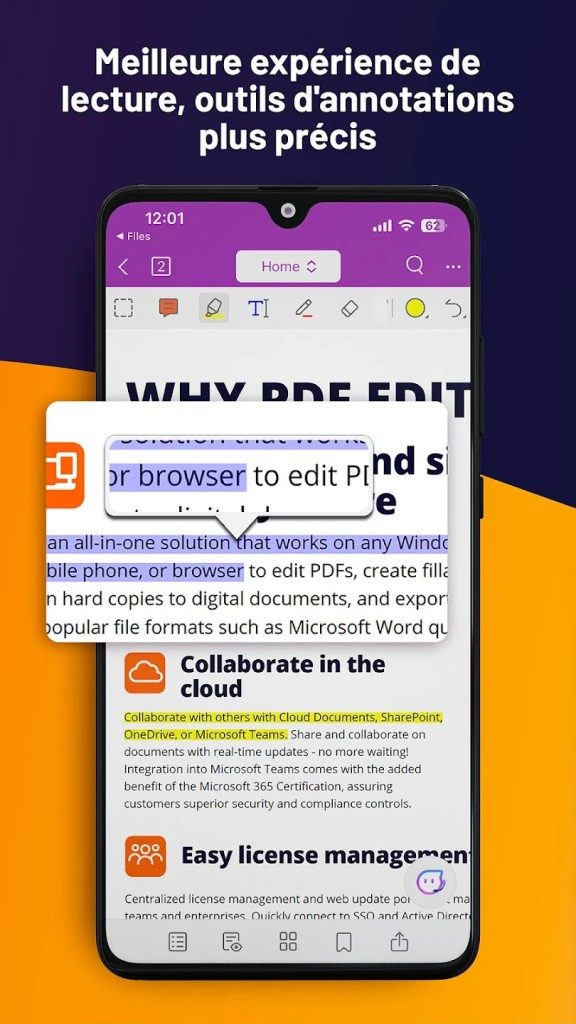
Collaboration features are a big draw for teams. You can add comments. You can draw on the diagram by hand. You can add custom stamps. Multiple users can track changes in real time. It’s like working with a shared document, but with the fidelity of a PDF.
Safety is equally important. Companies cannot afford to allow leaks. Foxit offers password protection. Supports document encryption. Manage your digital certificates and add watermarks to your confidential archives. This is not just for convenience. It’s about control.
Where to get official software
Download Foxit PDF Editor from Foxit official website. This is the only way to ensure that you have the latest and most secure version. Avoid using third-party download portals that come with adware or outdated versions.
Some users may be looking for alternatives. Futura’s website may have free download links. Although official sources are reputable, they are always safer. You want an authentic file, free of unwanted software.
Installed on desktop: Windows and macOS
The desktop installation process is standard but efficient.
- Visit the Foxit website.
- Select the appropriate version for your operating system (Windows or macOS).
- Download the installation file.
- Launch the executable file.
The installation wizard guides you through these steps. You can choose where to install the software. You can enable or disable certain extensions.
This is not a bad “set it and forget it” process.
Disk space and settings are respected.
System requirements are moderate.
Most modern computers can handle this without a problem. The installer runs quickly. Once you’re done, you can launch the app.
Mobile and cloud options
Not everyone works on desktops. Foxit understands this.
Android and iOS users can find Foxit PDF Editor in the Google Play Store and the Apple App Store. The mobile application is optimized for touch screens. It’s lighter than the desktop version, but still has key editing features. You can sign documents with your mobile phone. You can annotate a PDF while commuting.
For those who refuse to install the software, the web-based version is a viable option. Use the latest browser. Provides basic functionality without local installation or frequent updates. Perfect for quick editing on shared or limited computers.
After installation: updates and first steps
When you first open Foxit, a tutorial may appear. Please take a look. Highlight the most important features. The location of the tool will be displayed. No more mindless clicking.
Security updates are very important. Foxit allows you to set up automatic updates. This ensures you always have the latest bug fixes and security patches. If you prefer manual control, you can check for updates in the app. Do not skip this step. Old software is vulnerable software.
Foxit PDF Editor bridges the gap between simple viewing and complex editing. It’s not perfect. Some people may find the interface cluttered. However, it is a must for advanced users.
The true test of software is whether it fades into the background. Does it get out of your way? Foxit tries to do just that. You focus on the document. This tool handles the technical details.
There is still much to explore. The automation features alone could fill a book. But for now, installing it is the first step to regaining control of your digital documents.
Pricing models for professional documentation tools are not one-size-fits-all. Foxit PDF Editor has built a level of access for everything from independent freelancers to large enterprise deployments. The starting point is usually a free trial. This is a low-risk way to stress test the software against your own workflow before handing over the money. Try the interface and see if you can process old files without interruption and see if the interface suits your brain.
However, trials have their limits. Limited time or limited functionality. When time runs out, you have options.
Understand the Foxit PDF Editor pricing model
If the tool is needed in the long term, the license structure is more granular. You can pay a one-time fee for permanent use or you can order an annual or monthly fee. Costs vary based on three main variables: number of users, desired features, and level of support.
Do you need basic viewing or do you need advanced text recognition, co-editing and enhanced security protocols? Prices will rise accordingly.
Foxit also offers discounted prices for certain industries. Educational institutions, non-profit organizations and government agencies are often eligible for reduced licensing fees. This makes it easier for organizations to implement software across different departments without exceeding the budget. Managing licenses is very easy. You can activate your software on several devices according to the special conditions of the plan you choose.
Free and paid features of the online version
For those wary of installing desktop software, the web-based version offers an alternative approach. This way you can use Foxit directly through your browser. Even after the trial period ends, some basic features remain free. Reading, printing or electronic signing of documents does not require a subscription.
However, the use of premium features requires a paid plan. Features like file conversion, deep editing, and strong encryption are all locked behind a paywall. This subscription model also ensures that you receive regular updates. Staying up-to-date means staying compliant with the latest PDF standards. It keeps the tool relevant as the form evolves.
System requirements and support for different platforms
Compatibility is a big selling point. Foxit PDF Editor supports Windows 10 and Windows 11 operating systems out of the box. Supporting the latest versions of Apple’s operating system also protects macOS users. Whether you have a 5-person startup or a traditional company, this ensures a smooth integration with a modern IT infrastructure.
Mobile users are not left behind either. View and edit PDF files on the go with dedicated iOS and Android apps. The mobile experience is optimized for security and speed, so you don’t sacrifice functionality for portability.
What about Linux? There is no dedicated desktop client for Linux or any other alternative operating system. However, the online version fills this gap. It offers a browser-based interface that mimics the desktop experience. Your data is synchronized between devices, so the most used tools are always available. This is a workable solution for those who like open source operating systems.
Manage updates and version history
Software rot is real. Users often ask us how to handle updates and how to go back to older versions. If you need to force an update, you can do so from the app’s Help or Update menu. Alternatively, you can download the latest installer directly from the official website.
Sometimes you just need something old. For compatibility reasons, older projects may require older versions of the editor. Foxit maintains an archive of previous downloads. Use of these older versions requires a valid license. Even if your workflow is based on a specific set of features from two years ago, the company doesn’t just leave you hanging.
Education and training resources
Although this software is powerful, there is a learning curve to use its amazing features. If you’re having trouble with advanced document management or security features, we’re here to help. Foxit partners with several online platforms to provide educational resources.
You’ll find tutorials, hands-on workshops and even official certifications. These resources are suitable for individuals, students and corporate groups. We cover everything from basic editing to advanced digital document protection. Maximize your license ROI with these training tools. Stop fighting the software and start leveraging it.
The ecosystem is very strong. Flexible pricing. We have a support system if you need it.
Before downloading Foxit PDF Editor, you need to know if your hardware can actually handle Foxit PDF Editor. It’s not just about choosing box A or B. When the software is used to edit complex files, stability is needed. Developer Foxit Software has built a tool that replaces the bureaucratic PDF editor class that is the main technical backbone of your daily workflow.
Apps are everywhere. Works as a desktop application on Windows and macOS. There is a mobile version for Android and iOS. The service can also be accessed directly from the browser. This range covers general office needs such as editing text and images, adding comments, managing forms and using electronic signatures.
Compatibility and architecture
This software is based on industry standard security protocols. Integrate with leading cloud storage facilities to facilitate personal work and collaboration. A 64-bit environment is recommended when installing on a workstation. The reason is simple. Provides stable performance. The alternative often leads to crashes when opening large documents.
The software is optimized for 64-bit desktop environments, which guarantees stable performance even during intensive editing tasks.
Language support is multilingual. French and English are explicitly supported, but the user interface adapts to the system region. The user interface uses a ribbon layout with side panels. Supports drag and drop. This allows files to move naturally instead of being forced.
Security and data protection
Safety is not an afterthought here. This tool is password protected. Uses 256-bit AES encryption. Supports digital certificates and watermarks. This is very important when handling sensitive company data. It’s not just about saving files. You are locking them down.
Built-in collaboration features. Get comments, version history and stamps. Sharing takes place via cloud services. This reduces the number of emails with attachments being sent back and forth.
Supported formats and integrations
Foxit PDF Editor has reasonable system requirements for basic use. No need for a supercomputer. A regular computer or mobile device is usually enough for daily tasks. However, certain features, such as OCR, vary depending on the version you choose.
This software can handle PDF and PDF/A formats. You can import images such as JPG, PNG and TIFF. Export to popular office formats such as DOCX, XLSX, PPTX. This flexibility keeps people coming back. You are not locked into one ecosystem.
Connect to major storage providers with cloud integration. OneDrive, Google Drive and Dropbox are common examples. Internet connection is required for activation, updates and cloud services. Not required for local editing. This distinction is important when working in environments with poor connectivity.
Input/output options include printing and creating from compatible scanners using TWAIN or WIA drivers. Distribution is easy. You can download it from the official website, official mobile app store or use it online.
Which version do I need?
License options include a free trial. Commercial licenses are available as subscription or perpetual licenses depending on the offer. The key to choosing the right configuration depends on your use case.
If you need OCR, you need to check which versions support OCR. Not all versions have an optical character recognition engine. The same applies to advanced form management. Check the feature list according to your needs.
The minimum configuration is a standard PC or mobile device. There are no special hardware requirements for general use. However, for heavy workloads, 64-bit architecture becomes less of a preference and more of a necessity.
You can start with the trial. Test cloud synchronization. Check the speed on your largest PDF. If it holds up, the technical specs align with your workflow. If you experience stuttering, you may need to adjust your expectations or your hardware. This tool is powerful, but it’s not magic. You still need resources to breathe.
We cannot offer a continuation of this article because the previous parts (1-3) and the source text do not appear in the prompt.
Paste your source article or previous section here. Immediately write the next section with the redefined style and format.