VirtualBox is more than just a tool. This is the Swiss Army knife of virtualization. Originally developed by Innotek and later acquired by Oracle, this software allows you to run multiple operating systems simultaneously on one physical machine. No separate hardware required. No need to dual boot. Install Windows, Linux, macOS or even Solaris as a virtual machine (VM) alongside your primary OS.
This does not only apply to IT professionals. Home users, students, developers and security researchers all benefit. The goal? Isolate the risk. Test it without breaking it. Learn without fear.
Why virtualization is important for everyday users
Why do you want to use another operating system? You may be testing software that may contain malware. Maybe you’re learning the Linux command line without wiping your Windows install. Maybe your job requires certain legacy applications that only work on older versions of Windows. VirtualBox provides a secure sandbox. controlled environment. You can experiment freely there.
Consider the alternatives. You can also buy another computer. expensive. Messy. Or you risk installing untrusted software on your main machine. Dangerous. May cause permanent damage. VirtualBox solves this problem. It creates virtual hardware. CPU. memory. hard disk. network adapter. All simulated. All isolated. If the virtual machine crashes, the host system remains intact.
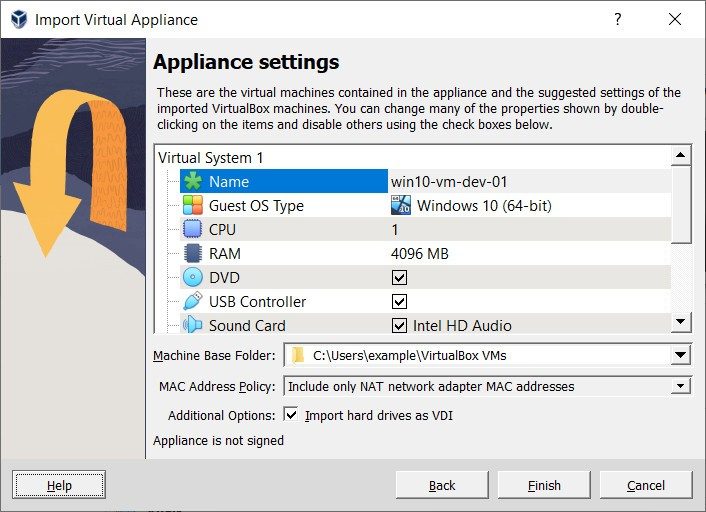
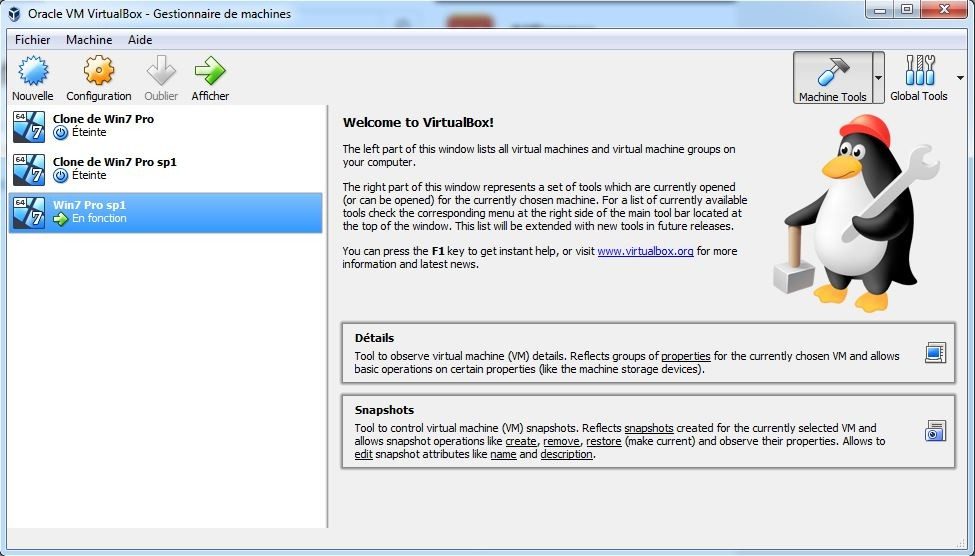
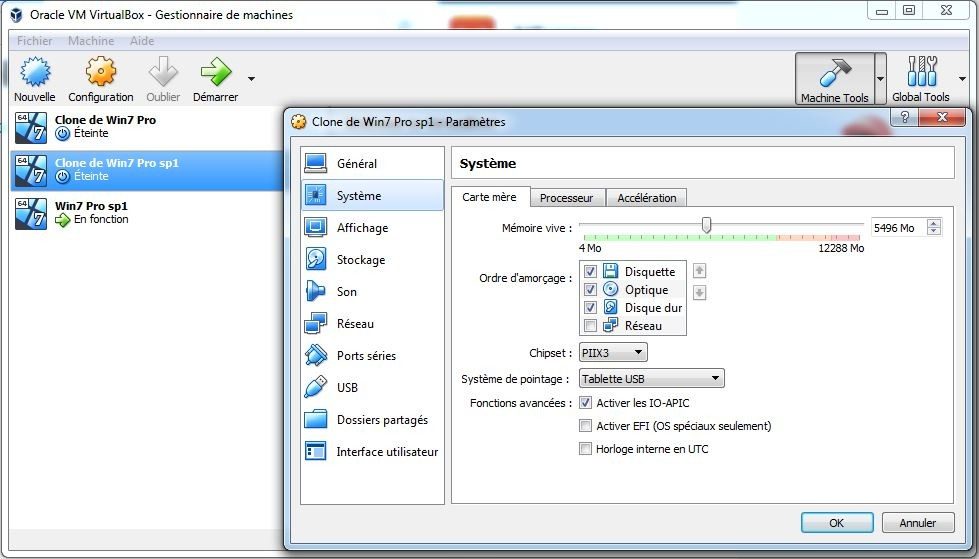
The user interface is very intuitive. You allocate resources precisely. How much RAM? How many CPU cores? Which USB devices to pass through? Shared folders? Network settings? Everything is adjustable. Snapshots allow you to record the state of a virtual machine at any time. Roll back changes instantly. It’s like a time machine for your software environment.
Compatibility and installation: cross-platform solution
VirtualBox can be used almost anywhere. This is an important selling point. It can be downloaded for free from Oracle’s official website. There are no hidden fees. No trials that expire. Only stable and safe software.
This is where it gets interesting. Works with Windows 10 and 11 (64-bit versions). macOS, Intel, Apple Silicon. Linux distributions. Yes, even on Solaris, though that’s niche. The macOS version of Apple Silicon requires emulation or a specific build, but it works. Linux users can obtain the appropriate installer for their distribution. Integration is smooth. No need to guess.
A portable version is also available. Place the entire VirtualBox environment on a USB drive. You can carry it anywhere. Run your virtual machine on any compatible computer. It does not need to be installed on the host computer. There are no registry changes. Administrator rights are (usually) not required. This is a huge advantage in terms of mobility. For consultants. IT support staff switch between locked company machines.
Installation instructions are provided. The wizard detects your operating system. Suggests required components. Recommends Guest Additions. These are very important. They enable shared clipboard. Drag and drop files. Adjust screen size dynamically. Improved mouse integration. Without Guest Additions, your virtual machine will feel clunky. With them, it feels native.
In MacOS, you may need to grant certain permissions. Allow kernel extensions. Accept the driver’s signature. It’s a bit more complicated than Windows, but still simple. You are not expected to become an expert in this process. it guides you. One step at a time.
The Real Value: Isolation and Flexibility
What makes VirtualBox stick? It’s not just functionality. It’s the freedom. You can simulate your network. Create a hybrid environment. Practice disaster recovery. Deploy test servers. All this can be done without touching your production infrastructure.
Security experts use this to analyze malware. Developers test their code on different operating system versions. Educators teach networking concepts. Students can learn Linux without breaking their laptops.
The tools adapt. To your needs. To your skill level. A simple user interface is provided for beginners. Experts get granular control. Snapshots. Virtual disk extension. device emulation. It scales with you.
Is it perfect? No software is. Incurs performance overhead. Executing an abstraction layer. However, for most use cases this trade-off can be ignored. The isolation is worth the slight hit to raw speed.
Think about it. You have a machine. Endless possibilities. Within it. VirtualBox doesn’t just add functionality. It multiplies them. Without the cost. Without the clutter.
The next step? Setting up your first VM. Configuring resources. Install the operating system. The journey starts there. And it’s easier than you think. But that’s another story. The foundation is now created. The tool is ready. The question is, what do you build with it?
When weighing virtualization software, the discussion often focuses on a few heavyweights. VMware Workstation Player and Parallels Desktop dominate the enterprise world, but their best features are often locked behind a paywall. VirtualBox takes a different path. Completely free for personal, educational and even most commercial purposes. This is not a trial version with watermarks or artificial limitations. You are not limited by the number of virtual machines you can use or network management, snapshots or storage capabilities. The open source community keeps the project alive and regularly provides plugins that add functionality.
Fine-tune resources and network settings
The technical depth here is enormous. You aren’t just spinning up a virtual operating system. You manage your resources precisely. Specify specific CPU cores. Allocate a specific amount of RAM. Configure your storage with advanced options like IDE, SATA, SCSI and even NVMe support. This software handles PCI passthrough, disk encryption, and complex network connections.
This is important because it allows you to simulate real scenarios. You can choose between bridged, internal, NAT, or host-only network modes. Want to test how your server performs in an isolated environment? Now you can. Do you need a bridge to a local LAN? This also works.
Interoperability is also an important factor. VirtualBox supports VDI, VMDK and VHD disk image formats. This means you are not tied to a proprietary ecosystem. Move virtual machines between different virtualization tools with little effort. This portability is critical for teams switching platforms and individuals moving between work and home environments.
Professional and academic Adoption
This is not just hobbyist code. VirtualBox is a key component in academic and professional environments. It is used in system administration courses, cybersecurity training and software development workflows. Some organizations offer specific training modules on how to use this tool for virtualization. There are also certifications that demonstrate mastery of the core concepts of virtualization.
This makes it a valuable resource for computer science students and professionals looking to expand their toolbox. This is a low-risk way to learn enterprise-level virtualization concepts without paying enterprise-level prices. The skills you learn here are directly transferable to other environments, so it’s a wise investment of your time.
The reality of downloads, updates and licenses
Getting the software is very easy. Visit Oracle’s official website or a trusted platform like Futura. Downloading is free, fast and safe. No annoying ads. No bloatware included. Installers are separate for each architecture: Windows 10/11, macOS, Linux and Solaris. This ensures optimal compatibility with current and recent host systems.
Updates are easy and highly recommended. New releases include security fixes, support for new guest operating systems, and hardware emulation or device management fixes. You can start the update search directly from the user interface or download the latest installer manually. If you need stability over new features, the official archives contains older versions. This is useful for certain use cases on older systems or where newer updates may break compatibility.
What you need to know about Licensing Split
That’s the tricky thing about the “free” label. The Standard Edition is licensed under the GPLv2. This is a strong open source license. However, Extension Pack have their own conditions. Free for personal, educational and evaluation use. For extended commercial contexts, it costs money.
This policy is transparent. In this way, individuals, students and teachers can use the software without financial barriers. it provides a structured, professional solutions for the large virtualization needs of large companies. The goal is democratization. Make virtualization technology to everyone and deliver reliable, secure products to the people who need them at scale.
The ecosystem around VirtualBox continues to grow. New features drop. Community patches emerge. The basic logic remains the same. This means efficient virtualization and corporate stranglehold. Get the tools. You handle the rest. It’s not perfect. The user interface hasn’t aged gracefully. Network drivers are finicky. But what about the price? It’s hard to argue with the utility. You continue to build your lab. You keep testing your code. The software stays out of your way.
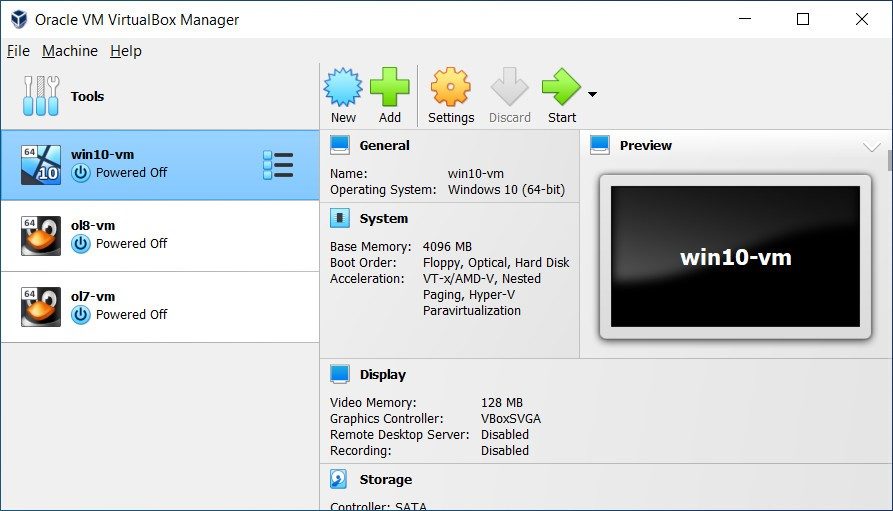
VirtualBox isn’t just another hypervisor. It’s a Type-2 solution that sits on top of your host OS, spinning up isolated guest systems without messing with your daily driver. The real magic happens when you install Guest Additions. This isn’t a minor patch. It’s the bridge that lets your virtual machine feel native. You get resizable windows, shared clipboard, and drag-and-drop file transfers. Without it, you’re stuck with clunky, static displays.
This flexibility is why teachers, sysadmins, and developers keep coming back to it. It handles everything from simple OS testing to complex network labs. The base software covers the essentials. The Extension Pack fills the gaps, specifically for advanced USB support and remote desktop protocols. It’s interoperable with major disk formats too. That means you can move VMs around without fighting conversion tools.
Key technical specs you need to know
Before you download VirtualBox, check your hardware. The requirements are straightforward but non-negotiable. You need a 64-bit processor with hardware virtualization enabled. That’s Intel VT-x or AMD-V. If that’s disabled in your BIOS, nothing will work. The software itself is free for personal and evaluation use, though commercial use requires a specific license. Oracle keeps the base under GPLv2, but the Extension Pack has its own rules.
Here is what you are actually getting in the box:
- Host OS support : Windows, macOS, Linux, and Solaris. It runs almost everywhere.
- Guest compatibility : Windows families, Linux distributions, BSD, and Solaris. Basically any x86/64 system.
- Storage controllers : IDE, SATA, SCSI, SAS, and even NVMe. Images can be VDI, VMDK, or VHD.
- Networking modes : NAT, NAT Network, Bridged, Internal, and Host-only. You can stack multiple virtual network cards if you need to simulate a complex LAN.
- USB support : Base version handles USB 1.x. You need the Extension Pack for USB 2.0 and 3.0 devices.
- Snapshots : Create multiple checkpoints. Clone machines completely or linked. Roll back changes instantly if an update breaks your build.
- Graphics : 2D/3D acceleration is available but depends on the guest drivers. It’s not for gaming.
- Automation : Headless mode via command line (
VBoxManage) or SDK/API. Ideal for servers or CI/CD pipelines.
Who should actually use it?
If you’re looking for a free, cross-platform tool to test software or learn a new OS, this is the answer. The interface is clean. The configuration options are granular enough to tweak CPU cores, RAM allocation, and storage limits precisely. For Windows 11 guests, recent versions include a virtual TPM and UEFI support. This makes installation smoother, assuming you’re using the latest release.
Performance is generally solid for development and cybersecurity labs. You can run headless instances for automation scripts. But don’t expect miracles for heavy graphics workloads. The 3D acceleration is limited. If you need professional-grade GPU passthrough or centralized enterprise management, you’re in the wrong place. Look at VMware Workstation or Proxmox for that.
There is a catch with newer hardware. On macOS with Apple Silicon (M1/M2/M3), virtualization is possible but feels younger than the x86 experience. Support is improving, but it’s not as mature. Some specific scenarios might hit roadblocks that don’t exist on Intel or AMD hosts.
For most people, though, the trade-off is worth it. You get a stable, transparent environment. It costs nothing to start. You can pair the base install with Guest Additions for usability. Add the Extension Pack if you need USB devices. It handles a wide spectrum of technical needs on Windows, Mac, and Linux.
The community documentation is extensive. You’ll find concrete answers for Windows 10/11, macOS, and Linux issues. Regular version updates keep things stable. It’s not just a toy. It’s a serious tool for experimentation and validation without the overhead of commercial licenses.
Is it perfect? No. The 3D limitations and Apple Silicon nuances keep it from being a universal replacement for enterprise hypervisors. But for daily dev work, testing configs, or teaching IT concepts? It holds its ground. You download it, you configure it, you isolate your changes. And when something breaks, you snap back to a previous state. That’s the value.
Last layer: Cloud infrastructure and scalability
I understand the code. The data is there. Users are already knocking on your door. We have now reached the stage where most projects start or break.
I’m talking about the background. When 10 people became 10,000 and then 10 million, an invisible machine kept the lights on.
Building functionality is not enough. We need to build systems that don’t collapse under their own weight. This is where cloud infrastructure stops being a buzzword and starts becoming a survival mechanism.
Why Local Servers Are a Legacy Risk
Let’s be honest. Hosting on your own hardware gives you a sense of control. Touch the server. Repair the cooling fan. Know exactly where your data is.
It’s also a nightmare.
A sudden spike in traffic puts a strain on your physical machines. You can’t magically get more CPU cycles just because a celebrity tweeted about your app. New hardware must be purchased, delivered, installed and configured. When everything was ready, the moment was over. Or you may have overused capacity that has been sitting idle for several months.
Cloud service providers like AWS, Azure and Google Cloud offer something different: flexibility.
Pay only for what you use. When a storm comes, the system scales automatically. When the sun shines, it scales down. You’re not paying for idle metal. You pay for active computing power.
Choose the right cloud model
Not all cloud solutions are the same. These terms can be confusing. Let’s cut through the noise.
IaaS (Infrastructure as a Service) is like renting empty land. Servers, storage and network available. You install everything else. You have complete control. In addition, you are solely responsible for security fixes and updates. Ideal for teams with deep DevOps expertise.
PaaS (Platform as a Service) is like renting a fully furnished apartment. Service providers manage the operating system, runtime and middleware. You just drop in your code. Deploy faster. Less control, less maintenance. Ideal for rapid prototyping and common web applications.
SaaS (Software as a Service) is the final product. You don’t touch the backend. Just use it. Think Slack or Salesforce.
For most new software projects, a hybrid approach is best. PaaS enables rapid development of core application logic. Use IaaS to run specialized high-performance tasks that require direct access to hardware.
The Cost Trap of Cloud Spending
This is the cloud’s dirty secret. It’s easy to lose money.
If you can start a server in seconds, you’ll forget to shut it down. Developers leave test instances running over the weekend. Additional databases are unused, but you will be charged the full amount.
This is known as “cloud sprawl.”
To avoid the bill shock, you need FinOps practices. This isn’t just finance. It’s engineering. Label each resource. Set alerts for unusual expenses. With reserved instances, you can handle predictable workloads and save up to 70% compared to on-demand pricing.
“The cloud doesn’t make IT cheaper. The cloud makes IT changeable.”
Variable costs can be profitable. Fixed costs can kill you. The key is visibility. You need to know which features cost what.
Security in a shared world
Security in the cloud is