
Windows 11 Media Creation Tool is Microsoft’s official utility for creating bootable installation media. This is not a mystery box. This is a simple script that downloads a clean official Windows 11 image and writes it to a USB drive or saves it as an ISO file.
Why is this important? Because it cuts out the middleman. This software is available directly from Microsoft. There are no third-party tweaks. No bundled bloatware。 It’s just a raw operating system. This is important for safety. This is important for consistency. This is important if you are reinstalling your computer after a hardware failure or building a new machine from scratch.
This tool ensures that the installation media you acquire is free of unnecessary programs and corruption.
Why use media creation tools?
There are two main reasons why most users dig this tool out of their archives.
- Reinstall: The drive is corrupted. The registry is messed up. I want a clean slate.
- Update: I’m upgrading from Windows 10 to Windows 11 and want to skip the regular Windows update notification queue.
This tool guides you through the entire process. It will ask what you want to do. 英语を电视します。 I’m dealing with writing. This consistency is critical for IT professionals who manage multiple machines. For the average user, it reduces the risk of making silly mistakes. Advanced computer skills are not required. All you need is a USB stick and a little patience.
If Windows Update is delayed, the update path is also forced. Microsoft servers may take some time to send update notifications. The media creation tool is not waiting for permission. It has everything you need to get the job done.
Compatibility: Windows Only (For Now)
This is the problem. This tool runs on Windows. Designed specifically for Windows 10. Older versions may work with proper updates, but don’t get your hopes up.
Does not work on macOS. Does not work on Linux. Does not work on Android or iOS. If you’re trying to create a Windows 11 bootable drive from a Mac, this tool won’t help you directly.
Mac users should choose the manual route. Download the ISO image from the Microsoft website. Then use a third-party tool like Etcher or BalenaEtcher to burn the ISO to the USB drive. It’s 2 steps instead of 1 step. But it works.
How to get it and how to use it
Installation is practically non-existent. Download the executable file from the official Microsoft website. Double-click it。 that’s it. There is no magic “next, next, done”. There are no hidden registry keys to mess up your system after installation. The tool is in RAM during use and then disappears.
The user interface is very simple.
- Accept the license terms.
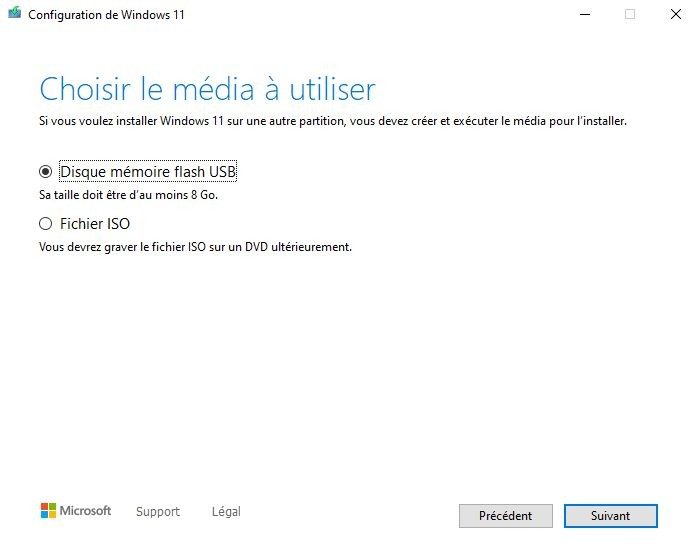
- Select the path: USB or ISO file.
- Select the drive.
- wait.
The software builds media independently. You can close the window or do other things. Downloading and confirmation takes place in the background. This efficiency makes it still the preferred method for clean installations.
Hardware requirements and TPM 2.0
You cannot install Windows 11 on 2013 or newer laptops. Microsoft has strict hardware requirements. The tool checks for these, but you need to know what they are.
The most important thing is TPM 2.0 。 Trusted Platform Module version 2.0. Security chip is required by Windows 11. If your motherboard doesn’t have Windows 10, you might be stuck with Windows 10. Or you have to spend a lot of effort to bypass the check (not recommended for casual users).
セキュア ロート も アタアでです。 This is a feature of the UEFI firmware that prevents malware from loading during boot.
Check your hardware before you start downloading gigabytes of data. Use tools like Microsoft’s PC Health Check. They will tell you if you qualify. If you see “No”, the Media Creation Tool may still install, but you may encounter errors or missing functionality later. Please don’t waste your time.
Cost and Licensing: Free Tool, Paid OS
This is where people get confused. There is no pro version. There is no student version。 There is no enterprise version. The executable file is the same for anyone.
However, Windows 11 operating system is not free of charge.
If you want to use Windows 11 legally after installation, you need a valid license
- If you have a Windows 10 license: You can usually transfer your activation to Windows 11 for free. A digital license is associated with a hardware or Microsoft account.
- If you are building a new computer: You may need to purchase Windows 11 license.
The tool facilitates the installation. No license key is supplied. The license part is handled separately. This means you can prepare your bootable media today and activate your operating system tomorrow or next month. The time is not important. This is required by law.
Who is this for?
The tool targets everyone from students to IT pros
Students can use this to refresh the laptop before the school term begins, and organizations can use this to expand the image on a large scale.
It removes the friction。 大ざっなな torrent クトで まんなすすますはま゛りフェソサムを manual check is not necessary. Microsoft provides がもースコーゴ䗾゛しんたすは移动进行.
This is the standard. This is a safe way. This is a legal way.
The reality of “free”.
Some users wonder if there is a hidden cost.
The reason for the confusion is operating system licensing. This tool is a gateway. It will get you to the door. If you don’t have a ticket (Windows 10 key) yet, you need to pay an entry fee.
This difference protects Microsoft’s revenue model. Provide an installation mechanism to reduce support tickets and piracy. If you can pirate ISO easily, you can also skip activation. Microsoft maintains visibility by controlling distribution using official tools. You can track your downloads. You can force a license check during activation.
It’s a win-win. Users get a clean and reliable installer. Microsoft controls distribution.
What happens after installation?
The media creation tool does its job and disappears. Boot from USB. You install Windows 11。 Set up a user account. Install the driver.
No tools are included at this stage. It served its purpose. It provides a source. Now the operating system takes over.
For some, this is the end of the road. Users install and configure tools and then forget they exist. For others, this is the beginning of a deeper understanding of system administration. You may want to create a backup. You may be able to automate the deployment. However, this requires more than just a media creation tool. Requires a script. knowledge is required.
The tool is the spark。 It starts the fire. What you make of it is yours.
Why don’t you use Windows Update?
Windows Update works if your hardware is compatible and updates are available. It is automatic。 It is very convenient.
However, it is not always available. In some cases, the implementation may take place in stages. Sometimes your hardware is on the edge. You may not trust automated processes that store all of your information.
Media creation tools put you in control. Select a version. You choose your media. You choose the timing. Don’t be at the mercy of Microsoft servers.
This control is valuable. It is especially valuable in professional settings. When you deploy 50 machines, you don’t want 50 different results. A standardized image is required. This tool helps create that standard.
final thought
Windows 11’s media creation tool isn’t magic. that
Why media creation tools beat Rufus in Windows 11
You can use Rufus. You can use balenaEtcher. However, if you want to use your Windows 11 PC without guesswork, Windows 11 Media Creation Tool is the only logical choice. It isn’t just another utility; This is the official bridge between your hardware and Microsoft servers.
If you already have the ISO file on your hard drive, alternative tools like Rufus or balenaEtcher will work just fine. Provides bootable media creation. However, they will not retrieve the files for you. So finding the right Windows 11 ISO can be a burden. That’s the risk. You can download unofficial images. Worse, it’s out of date. The Media Creation Tool automates this entire download process. You don’t have to be confused because you get the latest version of Windows 11 with Guarantee. No version compatibility occurs during the upgrade or reinstallation.
The tool automatically downloads and checks if the installed version matches the latest version.
Simplicity is the main selling point. Microsoft does not add additional features or complex interfaces to this tool. It just works. This makes it more accessible to beginners who might be intimidated by partition tables and boot sectors. For organizations and schools, this credibility cannot be negotiated. You want a process that doesn’t fail because someone clicks the wrong button in a third-party app.
Where to get older versions (and why not)
Microsoft does not host older versions of the Media Creation Tool on its main download page. Only the latest version is delivered. If you want an older version, you need to search the dedicated repository. Do not do this unless absolutely necessary.
Using outdated software can cause security holes and compatibility problems. Microsoft has fixed these tools. they fix bugs. They update the Windows 11 base image it pulls from. Using the latest version is the only safe option. This ensures you get all the latest fixes and performance improvements. Ignoring updates can be frustrating.
Bypass blocking Windows Updates
What happens when Windows Update fails? Or when Microsoft hasn’t pushed the Windows 11 update banner to your machine yet? This is where tools are important.
It allows you to force the migration. You are in control. Specify the type of installation. Are you saving files? What about your application? What is your setting? Or wipe the slate clean? This flexibility is key. This is commonly used in enterprise environments during stock upgrades. You can completely reset your software environment. You don’t have to be at the mercy of automatic update schedules that can be hesitant or intermittent.
IT professional and certification paths
This tool is not just for regular users. It is a toolkit for IT professionals, service technicians and IT trainers. Microsoft recommends this in its certification courses. It is specifically intended for the preparation and deployment of Windows 11 in a professional or educational environment.
There is no single exam dedicated solely to the Media Creation Tool. However, it has an important place in Windows administration guides. Documented in Microsoft’s official manual. You can watch it in video tutorials of accredited educational institutions. This is an essential skill for anyone managing a Windows environment.
Troubleshooting and educational deployment
Support for this tool relies heavily on Microsoft’s online help and community forums. When things go wrong (and they often do), these resources are your first line of defense. Common problems are download errors. USB compatibility glitches. Or you might encounter installation issues on computers that don’t fully meet Windows 11 requirements.
Colleges use this tool to deploy the latest versions of Windows to students and computer labs. It ensures software homogeneity. Get the latest features fast. It also supports clean installation. You know the type. Moving from an older version of Windows can be confusing and error-prone. A fresh install with the media creation tool resets everything. Let’s start with a healthy foundation.
The final word on deployment
The Windows 11 Media Creation Tool remains a key part of Microsoft’s deployment strategy. It balances ease of use with security. Ensures that the source of your software is secure. This gives you flexibility in managing your installation.
It naturally fits into the toolbox of users who want to take advantage of the latest Microsoft operating systems. This provides reliable, documented and long-term access to the upgrade process. This tool is not just for installing Windows. It manages the transition. In a world of scattered updates and interrupted patch cycles, control is everything.
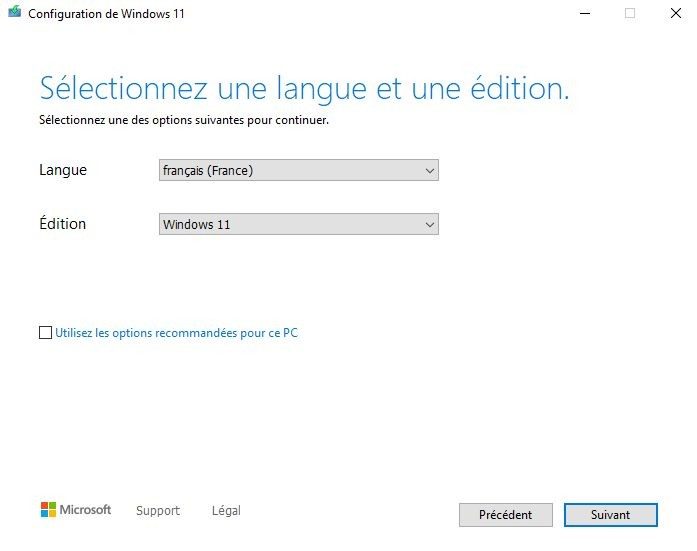
The Windows 11 Media Creation Tool is more of a lightweight, automated utility than a traditional program. Microsoft has designed it to work directly in Windows without forcing you to go through a tedious installation process. Downloading and running the executable will do the heavy lifting for you. What is its main function? Build a bootable USB drive or create an official Windows 11 ISO image. Download files directly from Microsoft servers to ensure integrity. This means it doesn’t depend on third-party mirrors or potentially corrupt downloads. The version created is fully compliant with Microsoft licensing standards.
Think of it as a bridge between your current computer and a clean, officially installed operating system.
Technical Breakdown and System Requirements
Before you click Download, you need to know what the tool actually requires. It’s more than just a push of a button. The following specifications define the basis for effective use of the Windows 11 Media Creation Tool. If any of these conditions are not met, the process may fail prematurely.
| Features | Specifications |
|---|---|
| Name | Windows 11 Media Creation Tool |
| Publisher | Microsoft Corporation |
| License | Free (Freeware) |
| Type | Installation media creation utility |
| Source | Official Microsoft website |
| Host OS | Windows 11 or Windows 10 (fully updated) |
| Output Formats | Bootable USB Drive, Windows 11 ISO File, Burn DVD via ISO |
| Target Architecture | Windows 11 (64-bit) |
| Installation | Portable executable (no installation required) |
| Admin Rights | Required |
| Internet | Required to download components |
| Storage | Enough disk space for temporary files |
| USB Capacity | At least 8GB for media creation |
| Language | Multilingual (corresponds to the language of the host system) |
| Security | Official Microsoft images, signed executables, built-in integrity checks |
Safety is not negotiable. Downloading a signed executable. This tool validates integrity checks against your Microsoft infrastructure. This prevents malware injection. This ensures that the ISO or USB drive you create is the same as the one you received in the retail box.
Why These Constraints Matter
You might be wondering why this tool requires a Windows 10 or 11 host system. The answer lies in compatibility and dependencies. This utility is designed to interact with the Windows Update architecture and specific API calls needed to obtain the correct build. An unsupported operating system, such as an old Windows 7 computer or a Linux system, breaks the chain of trust and functionality.
The 8GB USB requirement is not optional. The standard Windows 11 installation image is large. This includes drivers, core system files, and language packs. If your drive is small, your files will be truncated and become unusable. The tool checks this before starting. If there are not enough target devices, booting is not possible.
Internet connectivity is another hard stop. This tool does not bundle the entire operating system into a small package. It streams or downloads the necessary components on demand. If the connection is lost, the risk of file corruption increases significantly. A stable connection ensures that hash values match the