
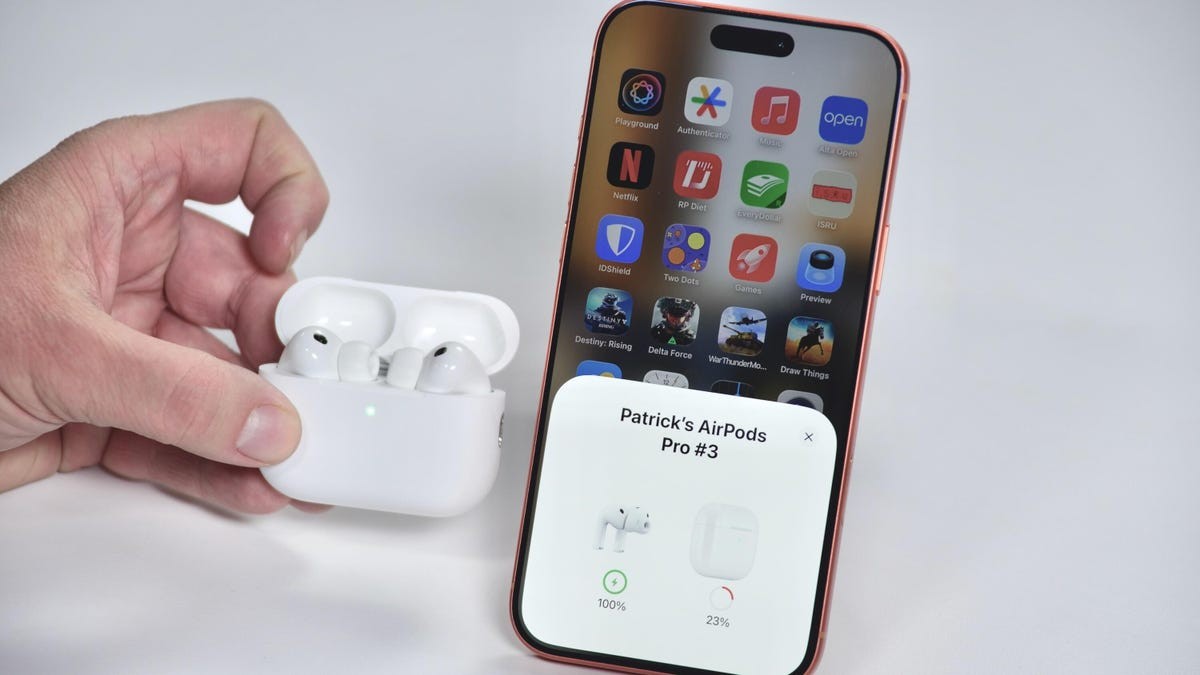
Wireless earbuds are incredibly convenient, but like all complex technology, they are not immune to software glitches. Whether you are experiencing dropped connections, pairing failures, or “phantom” audio issues, a factory reset is often the most effective solution.
Performing a reset does more than just restart the device; it clears out Bluetooth bugs and software errors, essentially returning the hardware to its original “out-of-the-box” state. This process is useful for two main reasons: troubleshooting malfunctioning hardware or clearing your personal data before selling or trading in your device.
Compatibility
This method applies to nearly the entire AirPods lineup, including:
– Latest Models: AirPods 4 and AirPods Pro (including the Pro 2).
– Older Generations: AirPods 2, AirPods 3, and the original AirPods Pro.
How to Reset AirPods on iPhone or iPad
If your AirPods are behaving erratically, follow these steps to perform a clean reset:
- Prepare the Case: Place both AirPods inside their charging case and close the lid.
- Disconnect from Bluetooth: Wait about 30 seconds, then open the lid. On your iPhone or iPad, navigate to Settings > Bluetooth. Find your AirPods in the list and tap the blue “i” icon next to them.
- Forget the Device: Select “Forget This Device” and confirm the action.
- The Hardware Reset: With the lid still open, locate the setup button on the back of the case. Press and hold this button for approximately 15 seconds. Watch the status light; continue holding until the light flashes amber, then switches to white.
How to Reset AirPods on Android
The process for Android users is slightly different regarding the software interface:
- Prepare the Case: Place the AirPods in the case and open the lid.
- Unpair via Settings: Go to Settings > Connected Devices. Tap the gear icon next to your AirPods and select “Forget” followed by “Forget device” to confirm.
- The Hardware Reset: Follow the same physical step as the iOS instructions: press and hold the button on the back of the case for about 15 seconds until the light flashes amber, then white.
What Happens After the Reset?
It is important to understand that a factory reset is a complete “wipe” of the device’s memory.
Note: Once reset, your AirPods will no longer automatically recognize devices linked to your iCloud account.
To use them again, you must treat them as a brand-new device. Simply open the case near your iPhone or iPad to trigger the standard setup animation, or follow the manual pairing prompts on Android.
Summary: A factory reset is a powerful troubleshooting tool that clears software errors and prepares your device for a new owner by erasing previous Bluetooth connections.