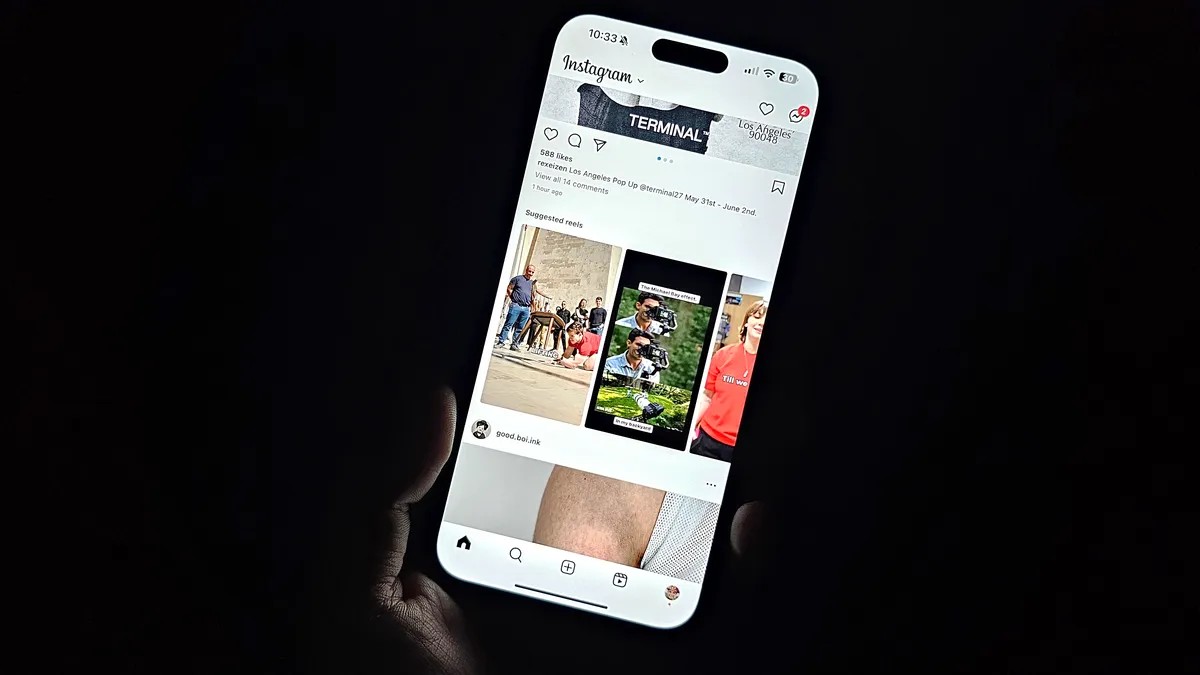
Pick up your phone in the dark. You get blinded. Immediately. It’s harsh, unfair, and honestly annoying. Maybe your partner is sleeping. Maybe you just have a headache and light is the enemy. The minimum brightness setting isn’t always dim enough, no matter what Apple claims.
Current iPhones claim they hit one nit of brightness. That sounds technical and low enough. It often isn’t. You’re staring into a beacon.
There are fixes though. Small tweaks that work better than the main slider. If you know where to look, the screen becomes bearable.
Turn the color warm
Night Shift changes how your phone feels before sleep. It uses your clock and location. Warm colors. Easier on tired eyes.
Does it actually help sleep? Science says maybe not as much as we thought. Melatonin suppression isn’t fully solved by yellow tinting. But reducing blue light is still good. Your eyes feel less like they’re staring at the sun.
You have two ways to trigger it.
Method 1: The Menu Route
Go to Settings. Tap Display & Brightness. Find Night Shift.
Schedule it. Or just leave it on all day if you want everything yellow. Use the slider to pick “More Warm” if “Less Warm” doesn’t do the job.
Method 2: The Shortcut
Swipe down from the top right corner. Open Control Center. Long-press the brightness moon icon. Hit Night Shift. Off. On. Fast.
Kill the white noise
Colors still too punchy? There’s another setting hidden in plain sight. Reduce White Point.
This doesn’t just warm the screen. It dulls the intensity of every pixel. Specifically bright ones. Whites don’t stay white. They turn into a softer gray-beige mix. It’s less harsh for night owls.
Here’s how to find it. It’s not in Display settings. It’s in Accessibility.
Go to Settings > Accessibility > Display & Text Size. Scroll down. Toggle Reduce White Point on. A slider appears. Drag it until the screen feels dimmed without actually changing the brightness bar.
“The marker under the setting lets you adjust the intensity to your liking.”
It’s subtle. But it works.
The Low Light Hack
Still too bright? Okay, this one is weird. But it’s powerful.
Use the Zoom feature. Not for zooming into pixels. For filtering the entire display.
Go to Accessibility. Tap Zoom. Look for Zoom Filter. Select Low Light.
Now triple-click the Side button (the power button) on the edge of your iPhone.
Boom. The whole screen goes dark. A gray overlay covers everything. It’s darker than the absolute minimum brightness slider allows. It’s genuinely low-light.
A little floating circle appears to show Zoom is active. You can hide that if it bothers you. To turn it off? Triple-click the Side button again.
Why would Apple hide this under Zoom? Beats me. It’s buried. But once you know it exists, it’s a game-changer for midnight scrolling.
Who reads in the dark anyway? Maybe just you. Maybe just me. Either way, your eyes will thank you for not staring at a lighthouse.
What else are you hiding from Apple’s menus?