
Outlook isn’t just an email client. It’s a command center. Microsoft designed it to be the most complete, versatile email software on the market. Professionals love it. Individuals rely on it. Why? Because it integrates tightly with the Office suite, offers an intuitive interface, and handles the daily grind of digital communication without breaking a sweat.
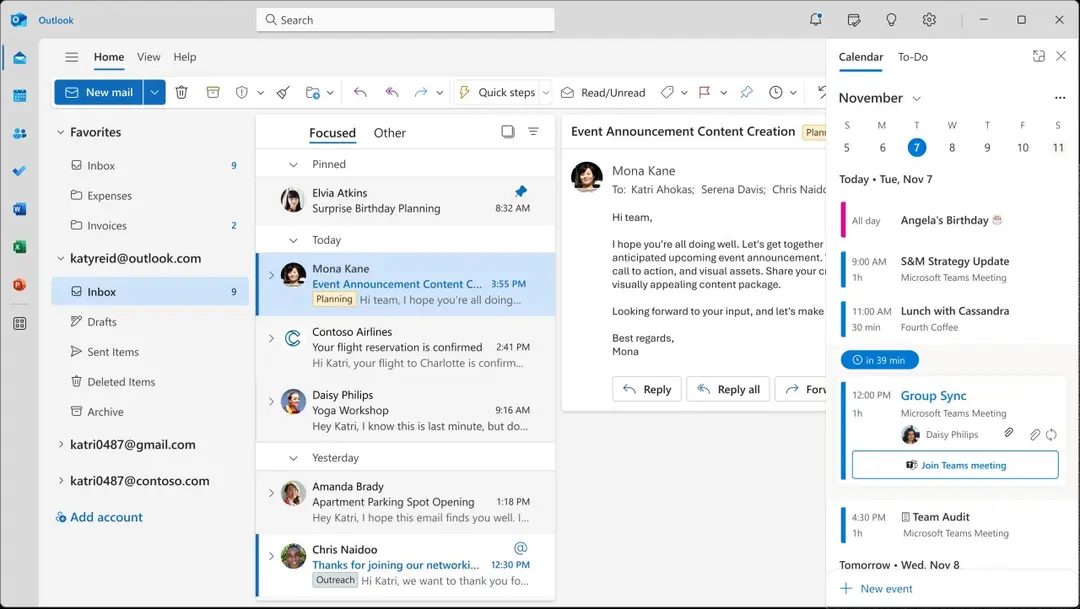
It does more than sort messages. It has a robust calendar for scheduling meetings and auto-reminders. A centralized address book keeps contacts organized. A task manager tracks your to-dos. Categorization tools help you triage inbox chaos. The goal is simple: keep your digital life streamlined.
Why Outlook Stands Out
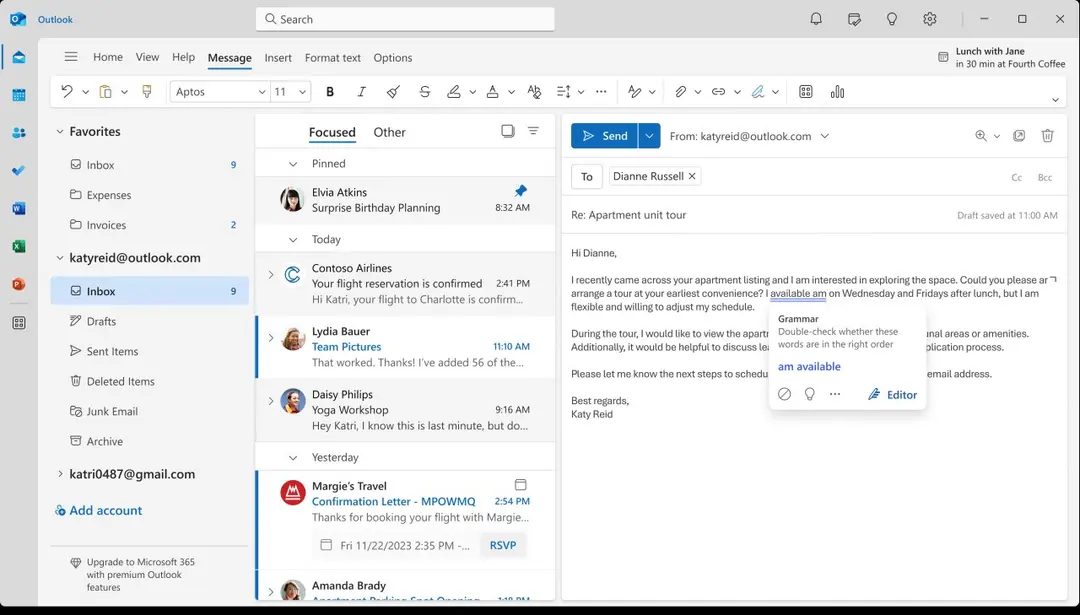
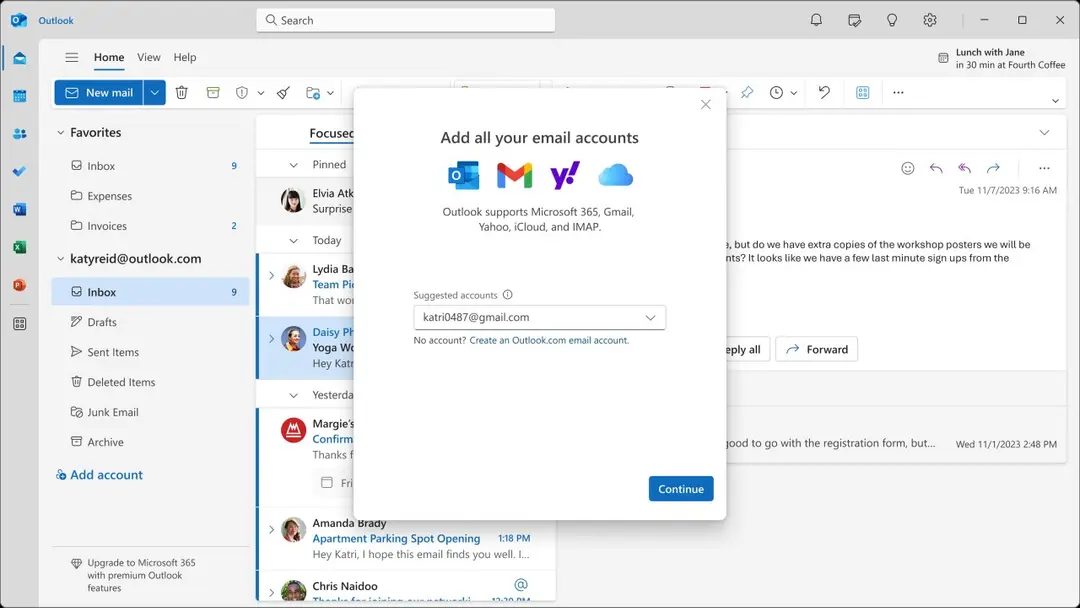
The real strength lies in adaptability. It syncs seamlessly across platforms. You can manage multiple accounts—Exchange, Gmail, Yahoo, IMAP/POP—from one spot. This centralization is vital for collaborative work environments. Security is also top-tier. You get advanced spam filtering, encryption, and phishing protection. Privacy settings are customizable, giving you control over your data.
Integration is where it shines. Outlook plays nice with Word, Excel, and Teams. Share documents easily. Track tasks without leaving your inbox. Access files directly from your email client. Third-party extensions and partners also enrich the experience. It’s becoming the reference point for managing daily digital activity.
Downloading and Installing Outlook
Boost productivity by managing emails, calendars, and contacts securely. The interface is fluid. The features are advanced. Both professionals and individuals benefit from this setup.
To get started, download Outlook from the official Microsoft site. Organize your communications effectively from day one.
Desktop Installation: Windows and Mac
For desktop users, the process is straightforward. The Outlook desktop client is primarily for Windows 10/11 and macOS. You need a license. Either subscribe to Microsoft 365 or buy a permanent Office version.
- Download the installer from Microsoft or an authorized partner like Futura.
- Launch the installer.
- Follow the guided steps.
On Windows, integration is optimal. You get advanced notifications and centralized network parameter management. The system works with you, not against you.
Mobile and Web Versions
Mobile users aren’t left out. The Outlook app is free. Download it from the Google Play Store for Android or the App Store for iOS (iPhone, iPad, Apple Watch).
The mobile version keeps the key features. Multi-account management. Automatic calendar and contact sync. Quick access to attachments. It mirrors the desktop experience closely.
Prefer not to install anything? The web version works in any browser. No installation needed. Perfect for occasional use or shared workstations.
Cross-Platform Compatibility and Syncing
Multi-platform support is a major advantage. Microsoft ensures compatibility with the latest Windows and macOS versions. Mobile environments are continuously optimized.
Linux users don’t have a native client. Use the web version instead. It’s a functional workaround.
Cloud synchronization via Microsoft 365 is the glue. Switch from computer to tablet to smartphone without missing a beat. Continuity of service is guaranteed.
Updates are automatic. Trigger them manually if needed. This ensures you always have security patches and new features. No complex interventions required.
Key Features to Know
Understanding what’s inside helps you use it better.
- Calendar : Plan meetings, schedule appointments, set reminders.
- Contacts : Centralized address book for easy lookup.
- Tasks : Manage your to-do list within the app.
- Categories : Sort and track emails with color coding.
- Security : Anti-spam, encryption, phishing protection.
Who Should Use It?
Individuals want simplicity. Professionals want power. Outlook offers both. The integration with other Microsoft 365 apps like Word and Excel makes it indispensable for office workers. Teams integration allows for quick communication.
The learning curve is low. The interface evolves regularly. Productivity is optimized. Interactions with colleagues and personal contacts become faster.
Final Thoughts
Outlook is more than software. It’s a habit. Once you centralize your communications, going back feels inefficient. The sync across devices means you’re always connected. Security features protect your data. The ability to add extensions keeps it fresh.
Is it the only option? No. But it’s the one that sticks. The ecosystem tie-in is too strong to ignore. For those already in the Microsoft world, it’s the natural choice. For others, the cross-platform flexibility might just convert you.
The interface changes. Features grow. The core promise remains: manage your digital life, efficiently.

Microsoft doesn’t sell Outlook as a standalone product anymore. You buy into the ecosystem. That ecosystem is Microsoft 365. It’s a subscription model. Monthly or yearly. You get Outlook bundled with Word, Excel, and PowerPoint. Plus cloud storage on OneDrive. This package makes financial sense for students, families, or businesses outfitting multiple machines.
The pricing strategy targets specific groups heavily. Students and teachers get discounted rates. You just need to show proof of enrollment. Microsoft also runs free trials. These let you test the full suite without committing cash upfront.
Free vs. Paid: Breaking down the Microsoft 365 Outlook cost
Not everyone needs the heavy lifting of a paid subscription. If you just want email, Microsoft offers a free web version. It lives at Outlook.com. The core features are there. Sending, receiving, basic calendars. It’s built for personal use. Or small-scale messaging. It works well for nomadic access.
The desktop app tells a different story. On mobile devices, the Outlook app is free to download. You don’t need a Microsoft 365 subscription to run it. You do hit walls with advanced features though. Those are locked behind the paywall.
Permanent licenses are rare now. Microsoft pushes for recurring revenue. They want you subscribed so you get continuous updates. Security patches roll out automatically. Old-school “perpetual” licenses exist only for classic Office suites. Buying an old version? Risky. You’re dealing with legacy installation media. Compatibility issues loom. Security vulnerabilities don’t get patched. Stick to the current model unless you have a very specific, isolated need.
Advanced workflow management and automation
Outlook isn’t just an email client. It’s a command center. The real value lies in how it organizes chaos. You can share calendars with colleagues. Delegate access to your inbox. Let assistants filter your chaos. Rules automate the boring stuff. Sorting. Alerting. Filtering.
Search capabilities are robust. You can dig through archives in clicks. Documents and messages are linked. Integration with Teams is native. Instant messaging. Video calls. Voice chats. All from one interface. This reduces context switching. That’s huge for productivity.
Learning the ropes shouldn’t be a headache. Microsoft provides extensive documentation. Interactive guides. Tutorials. They even offer certified training. For beginners. For administrators. There’s preparation for the Microsoft Office Specialist (MOS) certification. If you want to build custom automations, look at Microsoft Learn. The user community is vast. Forums are active. Resources are plentiful.
Comparing Outlook to Thunderbird, Apple Mail, and Gmail
Why stick with Outlook? Or should you switch? The market is crowded. Alternatives exist. They serve different philosophies.
Thunderbird. Developed by Mozilla. It’s open source. Highly customizable. You control the code. You control the experience. It appeals to privacy advocates and power users who want flexibility over polish.
Apple Mail. Native to macOS and iOS. If you’re deep in the Apple ecosystem, this is your default. It’s integrated. It’s clean. It just works. But it’s not cross-platform.
Gmail. Web-based first. Mobile second. It’s about simplicity. Connectivity. If you live in Google Workspace, Gmail is seamless. It handles large volumes of email with ease.
The comparison isn’t just features. It’s philosophy. Outlook integrates tightly with the broader Microsoft suite. It handles massive email volumes. Security protocols are enterprise-grade. Gmail offers superior search and spam filtering. Thunderbird offers privacy. Apple Mail offers ecosystem harmony.
Outlook’s popularity isn’t just nostalgia. It’s adaptability. It evolves. It adds features as collaboration tools change. It supports modern hybrid work. It’s not necessarily the best for everyone. But it’s the most versatile. The question is whether you need that versatility. Or if a simpler tool fits your workflow better. The answer usually lies in how much you value integration over simplicity.

Before you hit download, check the specs. Not just storage space. We are talking about compatibility, security postures, and how the usage model actually fits your workflow. Outlook isn’t just one thing. It is a desktop app. A mobile app. A web service in modern browsers. It adapts. It plugs into Microsoft 365 for collaboration. Whether you are centralizing IMAP or POP accounts, running Exchange in a corporate environment, or just checking mail in Chrome, the experience stays consistent. Cloud sync. Offline access. That is the baseline.
This section gathers the stable technical details to help you pick the right installation mode. Before installing on PC, Mac, or mobile, you need to know what protocols are supported. What formats work. How updates happen. It is a practical reference for individual deployment or enterprise rollouts. Interoperability with office tools and storage services matters.
Technical Specifications and Protocols
The name is Microsoft Outlook. Editor is Microsoft Corporation. It falls under email client, calendar, contacts, and tasks. Category is office automation and communication. The operating systems it touches are Windows 10 and 11. macOS. Android. iOS and iPadOS. And the web service in modern browsers.
Distribution types vary. There is the desktop application. The mobile application. The web service. Licensing is proprietary. The desktop version usually comes via Microsoft 365 subscription or perpetual Office suites. The mobile apps and Outlook.com service remain free.
Protocols are where the connectivity lives. Outlook supports Exchange and Exchange Online. IMAP4. POP3. SMTP. Exchange ActiveSync. This mix allows for flexibility. You can sync with corporate servers or personal Gmail/Yahoo accounts via IMAP.
Security is robust. TLS and SSL encryption are standard. OAuth 2.0 handles authentication. S/MIME supports digital signatures and encryption for sensitive data. There are also anti-spam and anti-phishing filters built into the engine. Data formats include PST and OST files for local storage. ICS for calendar invites. CSV and vCard for contacts. It handles Office attachments, PDFs, and common formats.
Integrations are deep. Microsoft 365 connects via OneDrive, SharePoint, Teams, Word, Excel, and PowerPoint. Add-ins come through AppSource. Offline functionality allows reading and composing. Sending and syncing happen when you reconnect. Account prerequisites include a Microsoft account, Exchange credentials, or any IMAP/POP compatible service. Accessibility features include screen readers, high contrast modes, and keyboard shortcuts. Updates are automatic via Microsoft 365, the Microsoft Store, or mobile app stores. The interface is multilingual, including French.
User Experience and Productivity
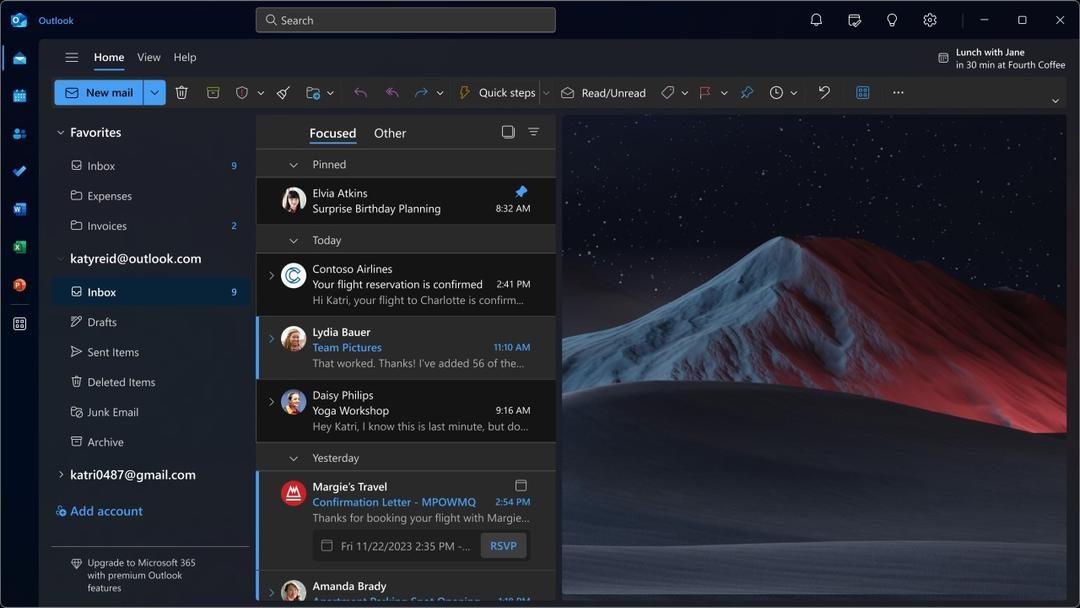
Outlook positions itself as a complete client. It centralizes email, calendars, contacts, and tasks. Downloading Outlook serves varied needs. From personal tracking to team coordination. The experience is homogeneous across Windows 10/11, macOS, Android, and iOS. Setup is easier with a clear interface. Organization relies on categories, sorting rules, and search folders. This supports rigorous management of high message volumes.
The main advantage is the integration with Microsoft 365. Direct links to Teams and OneDrive speed up file sharing and meeting planning. Priority Inbox filters noise. Quick Actions streamline responses. Advanced search helps you find anything. Daily productivity gets a boost.
Security isn’t an afterthought. Anti-spam filtering. Phishing protection. S/MIME encryption. Protected links and attachments enhance confidentiality. Multi-account sync covers Exchange, IMAP/POP, and cloud services. Offline mode on desktop ensures continuity. The free mobile app covers mobility.
But there are limits. The subscription model for the desktop version can strain a budget. Some advanced functions are locked behind Microsoft 365 walls. On older machines, memory usage can be heavy. Parameters can be complex for less tech-savvy users. Enterprise environments often impose security policies that restrict customization. For everyday use, the web version and mobile app cover the essentials for free. The choice of edition depends on priorities. Advanced collaboration. Centralized admin. Budget constraints.
To start quickly and benefit from security updates, downloading Outlook from a reliable source is the safest path. Whether for a PC, Mac, or mobile device.

The hidden cost of staying on Windows 10
You might think you are saving money by sticking with Windows 10. The license is already paid for. The apps still work. It feels stable. That stability is an illusion. Microsoft does not care about your budget. It cares about its roadmap. And that roadmap points firmly away from 10.
Support ends in October 2025. That is not a distant deadline. It is closer than you think. After that date, the security patches stop. The bug fixes disappear. Your machine becomes a target. Not for fun. For profit. Bad actors want in. They see a system that no longer receives updates as an open door.
Why legacy support isn’t a free pass
You might have seen news about extended security updates. Those are real. But they come with strings attached. You have to pay. A lot. The pricing structure for Extended Security Updates (ESU) is not designed for consumers. It is designed for enterprises with deep pockets. For a home user, or a small business running a few machines, the cost adds up fast.
Consider the hardware. Windows 11 demands more. It needs a TPM 2.0 chip. It needs a newer processor. If your computer was built before 2018, it might not pass the check. You might be staring at a “This PC can’t run Windows 11” message. That is a hard stop. No workarounds. No tricks. Microsoft blocks it.
The migration headache
Moving is not just clicking a button. You have to plan. You have to back up. You have to restore. If you skip the backup, you lose data. Simple as that. If you try to skip the hardware check, you install an unsupported build. It might work today. It will break tomorrow. And you will be on your own.
Here is what you need to check before you start the upgrade process:
- System requirements : Use the PC Health Check app. It tells you exactly what is missing.
- Storage space : You need extra room for the download and the installation files. 64GB is a minimum, but 100GB is safer.
- Peripherals : Printers and scanners often need new drivers. Old ones will not work on Windows 11.
Performance differences
Is Windows 11 faster? It depends. On modern hardware, it uses resources more efficiently. DirectStorage helps games load quicker. Auto HDR makes visuals pop. But on older rigs, it can feel sluggish. The background processes are heavier. The UI animations consume GPU cycles. If you are gaming, the improvements are real. If you are just browsing the web, the difference is negligible. Or worse, negative.
What happens after October 2025
Imagine logging in. You open your browser. You see a warning. The system is no longer secure. You try to install a critical update. It fails. You try to run a new version of your accounting software. It refuses to install. The ecosystem moves forward. You are left standing still.
You can try to block updates. You can use third-party tools to freeze the system. But those tools are risky. They can corrupt your registry. They can leave you vulnerable to malware that exploits known, unpatched holes. It is a