You’ve heard the phrase before. You’re at your office desk, trying to access a news site or a cloud tool, and IT shuts you down with the classic line: “The firewall is blocking it.” If you work for a mid-sized or large enterprise, this is your daily reality. It’s not just corporate jargon. It’s a structural barrier.
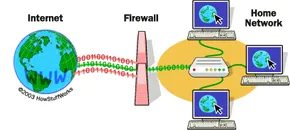
But the firewall concept isn’t reserved for the corner office. If you have a cable modem or DSL at home, you are sitting on a network that shares the same vulnerabilities as a Fortune 500 company. You might not have five hundred employees, but you do have personal data, financial info, and connected devices. A home network firewall does for your living room what it does for a server room: it stops offensive websites and potential hackers from walking in the front door.
Think of the name literally. A firewall is a barrier designed to keep destructive forces away from your property. Just as a physical wall stops fire from jumping from one building to the next, a digital firewall stops malicious code and unauthorized access from spreading into your private system.
What Firewall Software Actually Does
At its core, a firewall is a gatekeeper. It is either a software program running on your computer or a dedicated hardware device that sits between your private network and the chaotic public internet. Its job is simple but critical: filter information.
If you understand how data moves on the web, you can see why this matters. Data doesn’t just appear on your screen. It arrives in small chunks called packets. A firewall examines each packet. If a packet triggers a filter rule, it gets thrown in the trash. It never reaches your computer. If it passes the filters, it moves forward.
Consider a company with 500 employees. Each employee has a computer. Each computer has a network card. The company connects to the internet via high-speed T1 or T3 lines. Without a firewall, those 500 machines are wide open. Any hacker with a script can probe them. They can try to force FTP connections. They can attempt to hijack Telnet sessions. If one employee accidentally leaves a security port open, the entire network becomes vulnerable. A breach on one machine can cascade.
A firewall changes the geometry of the attack surface. The company places firewalls at every point of entry. Every T1 line gets a guard. These devices enforce strict security rules. For example, the rule might state: “Of the 500 computers inside this company, only one is permitted to receive public FTP traffic.” The firewall allows FTP connections to that single server and blocks them everywhere else.
This control extends beyond just servers. It governs how employees browse the web. It decides if files are allowed to leave the company network. It provides an organization with tremendous control over data flow. You can’t just plug a USB drive into any machine and walk out with client lists. The firewall watches.
Three Ways Firewalls Filter Traffic
Firewalls don’t just block things randomly. They use specific methods to analyze and control traffic flowing in and out of your network. There are three primary approaches, each with different strengths.
-
Packet filtering – This is the most basic method. The firewall looks at each packet of data against a set of predefined filters. It checks the source address, destination address, and port number. Packets that match the rules are sent to the requesting system. All others are discarded. It’s fast, but it doesn’t look at the actual content inside the packet.
-
Proxy service – This method acts as an intermediary. When you request information from the internet, the firewall retrieves it for you. The external server never sees your computer directly. The firewall then sends the data to your system. This hides your internal network structure and adds a layer of inspection, but it can slow down connections.
-
Stateful inspection – This is a more modern and robust approach. Instead of examining the contents of every single packet individually, the firewall compares key parts of the packet to a database of trusted information. It monitors information traveling from inside the firewall to the outside, noting specific characteristics. Incoming information is then compared to these characteristics. If there is a reasonable match, the data is allowed through. Otherwise, it is discarded. This method maintains the “state” of the connection, ensuring that only legitimate responses to your requests come back.
“A firewall gives a company tremendous control over how people use the network.”
The landscape of threats changes constantly. New vulnerabilities appear. New exploits are discovered. But the fundamental principle remains the same. You need a barrier. You need something that decides what comes in and what stays out. Without it, you are leaving your digital front door wide open to anyone with the know-how to walk in.
Filtering the Noise: How Firewalls Actually Work
Firewalls aren’t static brick walls. They are customizable filters. You build the rules. You decide what gets through. The logic relies on specific conditions, and if you know how to tweak them, you get better protection. Without that control, you’re just hoping the default settings are enough. They rarely are.
Blocking by Identity: IPs and Domains
Every machine on the internet has a unique identifier. An IP address. It is a 32-bit number, usually written as four “octets” in a dotted decimal format. Take 216.27.61.137, for instance. If a specific external IP is hammering your server with too many file requests, you can block all traffic to and from that exact string. Simple. Effective.
But remembering strings of numbers is painful. That is why domain names exist. www.howstuffworks.com is easier to recall than 216.27.61.137. IP addresses change. Domain names stick. You can block access to entire domains or whitelist only the ones you trust. It is about managing identity without memorizing code.
Understanding the Language: Protocols
A protocol is just a set of rules. It defines how a client and a server talk to each other. The “someone” here is often a program, not a person. Your web browser uses these pre-defined scripts to request and receive data. You see the protocol in the URL bar. HTTP. HTTPS.
Firewalls can filter based on which protocol is being used. This allows you to restrict services at a fundamental level. If you only need one machine to handle specific traffic, you can ban that protocol everywhere else. Here is the toolkit you are dealing with:
- IP (Internet Protocol) – The backbone. It delivers information across the internet.
- TCP (Transmission Control Protocol) – Breaks data into pieces for travel, then rebuilds it. Reliable.
- HTTP (Hyper Text Transfer Protocol) – The language of web pages.
- FTP (File Transfer Protocol) – Used for uploading and downloading files.
- UDP (User Datagram Protocol) – Fast but messy. No response required. Ideal for streaming audio or video.
- ICMP (Internet Control Message Protocol) – Routers use this to talk to other routers.
- SMTP (Simple Mail Transport Protocol) – The standard for sending text-based email.
- SNMP (Simple Network Management Protocol) – Gathers system info from remote computers.
- Telnet – Allows you to run commands on a remote machine. (Use with caution; it is unencrypted.)
Closing the Doors: Ports
Servers offer services through numbered ports. One port for each service. Think of a server running both a web server and an FTP server. The web service lives on port 80. The FTP service sits on port 21.
You can block port 21 on every machine in your company except one designated server. This granular control prevents unauthorized access to specific services. It forces users to use the approved channel.
Sniffing for Trouble: Content Filtering
Some firewalls go deeper. They sniff packets. They look for exact matches of specific words or phrases. You could instruct the firewall to block any packet containing the word “X-rated”.
Note the precision required. The filter is case-sensitive and character-specific. “X-rated” is different from “X rated”. No hyphen. The filter won’t catch the second one. You have to be meticulous. But you can include as many variations as needed. It is a blunt instrument, but it works for basic content filtering.
Where the Firewall Lives: Gateway vs. Hardware
Your operating system might have a firewall built in. Or you can install software on the computer that connects your home network to the internet. That computer is your gateway. It is the single point of entry. The choke point.
Hardware firewalls work differently. The device itself is the gateway. A Linksys Cable/DSL router is a classic example. It has an Ethernet card and a hub built-in. Your computers connect to the router. The router connects to your cable or DSL modem.
You configure it via a web interface. Open a browser on your computer. Enter the router’s address. Set your filters. Add information. It is all in your hands.
The Cost of Security
Hardware firewalls are incredibly secure. And they are not expensive. You can find home versions that include a router, firewall, and Ethernet hub for broadband connections for well under $100. For the price of a decent dinner out, you get a dedicated guard at your door.
But configuration is key. A cheap firewall with no rules is just a paper shield. You have to build the logic. You have to define the threats. Once you do, the gap between “connected” and “secure” shrinks significantly.
Still, no filter catches everything. Some traffic slips through by design. Or by mistake. What happens when the filter fails? That is a problem for another day.
Why You Need a Firewall (And What It Actually Stops)
The internet is a messy place. Bad actors don’t just knock on your digital door; they pick the lock, sneak in through the window, or trick you into handing over the keys. Understanding what a firewall actually blocks is the first step in not getting burned.
Remote Login and Backdoors
Remote login is the nightmare scenario. It means someone has bypassed your perimeter and is now sitting at your terminal, viewing files or running programs as if they were you. But how do they get in?
Sometimes it’s through application backdoors. Some software ships with hidden remote access features—intended for tech support, often abused by hackers. Other times, it’s just a bug. A glitch in the code creates a backdoor, a hidden path that grants unauthorized control.
Then there are operating system bugs. Windows, macOS, Linux—none are immune. If an OS has insufficient remote access controls or known vulnerabilities, an experienced hacker can slip right in.
The Spam and Email Trap
SMTP session hijacking is a classic vector. SMTP is the protocol that moves email across the internet. If a hacker hijacks your SMTP session, they can use your server to blast spam to thousands of people. They hide behind your IP address, making them nearly impossible to trace while your reputation takes the hit.
Speaking of spam, it’s annoying, but it’s also dangerous. Spam often contains links to malicious sites. Click one, and you might accidentally accept a cookie that opens a backdoor to your system.
Email bombs are different. They’re personal attacks. Someone floods your inbox with hundreds or thousands of messages until your system crashes or becomes unusable.
Denial of Service and Redirects
You’ve heard of Denial of Service (DoS) attacks. A hacker sends a flood of connection requests to a server. The server acknowledges them and tries to establish a session, but the request comes from a ghost—no real source exists. The server gets bogged down trying to find non-existent systems, slowing to a crawl or crashing entirely.
Hackers also use redirect bombs. By manipulating ICMP packets, they can change the path your data takes, sending it to a different router. This is often the setup for a DoS attack, diverting traffic away from its intended destination.
Source routing is another trick. Usually, routers decide the path your packet takes. But with source routing, the sender specifies the route. Hackers use this to make traffic appear to come from inside your trusted network, bypassing security checks. Most modern firewalls disable source routing by default. Do not re-enable it unless you know exactly what you’re doing.
Macros and Viruses
Macros are scripts designed to automate tasks in applications. Hackers embed malicious macros in documents. Open the file, and the script runs. Depending on the application, this can delete your data or crash your system.
Viruses are the old faithful of cyber threats. A small program that copies itself to other computers. It spreads fast. Some are harmless pranks; others erase your hard drive.
The Reality of Firewall Limits
Not everything in this list can be stopped by a firewall. Firewalls are great at blocking unauthorized remote logins and filtering suspicious traffic patterns. But they are not magic shields.
Some firewalls offer basic virus protection, but it’s weak. You should install dedicated anti-virus software on every computer. It’s a small price for peace of mind.
Spam? It’s going to get through. If you accept email, spam will reach your inbox. A firewall can’t filter out every junk email without blocking legitimate mail. You have to live with some annoyance.
How Much Security Is Enough?
The level of security you choose depends on your threat model. The safest option is to block everything. But then you can’t use the internet. That defeats the purpose.
A common rule of thumb for businesses: block everything, then selectively allow only what you need. Restrict traffic so only email gets through, or only specific web ports. This works if you have an experienced network administrator who knows exactly what traffic to permit.
For most of us? Stick to the defaults. Unless you have a specific reason to change your firewall settings, leave them alone. The default configurations are usually a good balance between security and usability.
The Bottom Line
The biggest benefit of a firewall? It stops outsiders from logging onto your computer. For businesses, this is critical. For home users, it’s less likely to be a direct threat. Still, it provides a layer of defense. It stops the casual snooper. It blocks the automated bots. It gives you peace of mind.
Is it perfect? No. But it’s better than nothing. And in the world of internet security, “better than nothing” is often the only thing standing between you and a compromised system.
A firewall doesn’t have to work alone. Pairing it with a proxy server adds a crucial layer of mediation for your web traffic. Instead of letting your personal computer talk directly to the internet, the proxy acts as an intermediary. When you request a web page, your computer asks the proxy for it. The proxy fetches the content and then passes it back to you. The remote server only sees the proxy, not your actual machine. This isolation breaks the direct line between external threats and your internal devices.
Beyond privacy, proxies improve speed. They cache frequently visited pages. If you visit a site, the proxy saves a copy. Next time you go to that same page, it loads instantly from the local cache rather than downloading it again from the source. It’s a simple way to reduce latency and bandwidth usage.
Exposing Services Safely with a DMZ
Sometimes, isolation is too restrictive. If you run a web server, FTP site, or online business from home, you need incoming traffic to reach specific machines. You don’t want that traffic touching your personal files or private desktop. That’s where a DMZ (Demilitarized Zone) comes in.
Despite the military-sounding name, the concept is straightforward. Think of your home network as the interior of your house. The firewall is the door. The DMZ is the front yard. You can put valuable items like a mailbox or garden lights in the yard, but they are exposed to the street. Your core valuables remain inside the house, behind the locked door. In technical terms, the DMZ sits outside the main firewall protection but still within your network boundary. It hosts public-facing servers that can be reached from the internet.
Setting up a DMZ is often simpler than it sounds. If your network has multiple computers, you can designate one specific machine to sit between the internet connection and the firewall. Many consumer-grade software firewalls allow you to flag a specific directory or IP address as the DMZ location. This ensures that while the public server is accessible, your other devices remain shielded from direct external contact.
Verifying Your Security Posture
Configuring the tools is only half the battle. You need to know if your setup actually works. A quick check can reveal open ports that might be inviting attackers. The Shields Up! tool from GRC (Grall Research Company) is a standard resource for this. It performs a free security test on your connection and gives immediate feedback on your vulnerability status. It’s a fast way to verify that your firewall and proxy configurations are doing their job.
Related Resources
For deeper dives into these topics and related security practices, consider exploring:
- 10 Worst Computer Viruses
- How Computer Viruses Work
- How Home Networking Works
- How Routers Work
- How Web Servers Work
- How Spam Works
- How E-mail Works
- How Spyware Works
- How Ethernet Works
- How Internet Cookies Work
- How Operating Systems Work
Additional Reading
- The Educated Shopper’s Guide to Firewalls
- Comprehensive Protocol Directory
- Firewalls FAQ
- Firewall Product Overviews
- Cable Modem Basics