
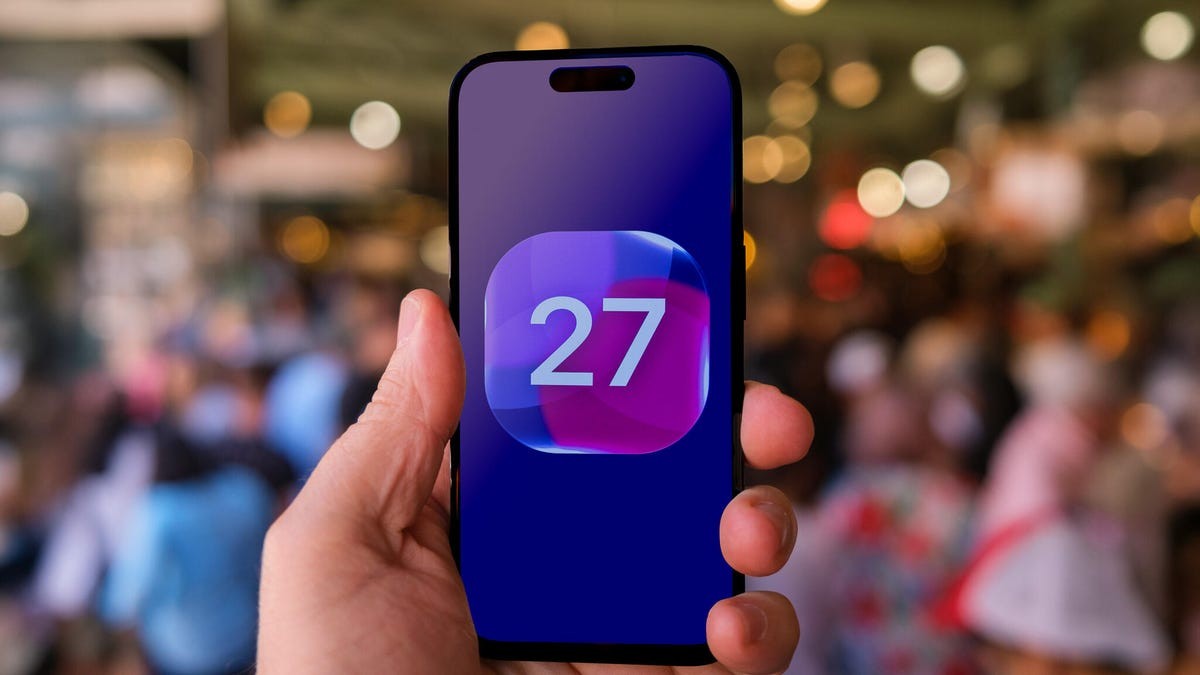
iOS 27 is here in its public beta. If you’ve got a compatible iPhone, you’re probably testing the new AI tools right now.
There’s faster performance. A Siri that actually reads your screen. Liquid Glass design that makes everything look like a fishbowl.
But let’s be real.
Some of this new stuff is annoying out of the box. Siri remembers your every word forever. Subtitles pop up when you’re trying to relax. The interface feels… slippery.
Good news: You can change almost all of it.
Keep in mind. These settings are from the first public beta. Apple might shuffle menus before the fall release. But right now? Here is how you get your iPhone to behave.
Make Liquid Glass Easier to Read
Remember when Apple introduced that translucent look? With iOS 26, it hit menus and notifications hard. By iOS 27, they’ve finally given you the dial.
Not everyone wants to see their background bleeding through their settings menus. If you’re struggling to read text against a blurry backdrop, adjust the tint.
Go to Settings > Appearance > Liquid Glass.
Slide it to the right. You add opacity. Buttons get clearer. Text stands out. Move it left, and you get maximum transparency again.
What if it’s still not enough?
Try the nuclear option. Go to Settings > Accessibility > Display & Text > Reduce Transparency. This forces solid backgrounds. It breaks the glass effect entirely, but it saves your eyes.
The slider controls the look. Accessibility controls the clarity. Pick your poison.
How to Stop Siri From Hoarding Your Chats
The new Siri in iOS 27 acts more like a dedicated AI chatbot. Think ChatGPOC or Claude. There is actually an app for it now. It syncs with iCloud. Start a thread on your iPhone, pick it up on your Mac.
The problem? It keeps them. Forever. By default.
Unless you want a searchable archive of every trivial question you asked over the last decade, you probably want to change that.
- Open Settings > Siri > Keep Conversations.
- Choose 30 Days or 1 Year.
This automatically purges older data. No manual deletion needed.
While you’re in the Siri menu, check Opens To. Select A New Conversation.
Why? Because you don’t need to stare at yesterday’s weather check every time you tap the app icon. Just a clean slate.
Note: These Siri AI features only work on iPhone 15 Pro models, the iPhone Air, and any iPhone 16. If you’re on an older device, these menus might not exist.
Turn Off “Write With Siri” If You Hate AI Drafting
iOS 27 added a new button above the keyboard. “Write with Siri.” It’s in Messages. Mail. Notes.
You can ask it to draft an email. Rewrite a sentence in a “professional tone.” Proofread your grocery list.
I’m not using it. Most of us probably won’t use it daily. If you hate seeing the AI prompt hanging over your keyboard, hide it. Or rather, kill it at the system level.
Go to Settings > Screen Time > Content & Writing Restrictions.
- Turn on Content & Privacy Restrictions.
- Tap Siri > Writing Assistance.
- Set to Don’t Allow.
This doesn’t just hide the button. It removes the permission. You’ll have to flip that switch back if you decide AI writing is for you later.
Why Is Siri Activating on Random Words?
This isn’t new to iOS 27, introduced back in iOS 17. But it’s more irritating now.
Siri wakes up on “Siri.” Just the word. Not “Hey Siri.”
It sounds convenient. Until you’re in a Zoom call and someone says “Siri” while talking about the cloud. Your phone lights up. You look unprofessional.
Fix it immediately.
Go to Settings > Siri > Talk To Siri. Change it to Hey Siri.
Add that one extra syllable. It costs you nothing and buys you sanity.
Stop Subtitles From Ruining Your Videos
Watch a video in Safari. Or in Photos. iOS 27 thinks you need captions. Always.
It’s smart. Maybe too smart. If your phone is muted. If it detects a different language. If you scrub backward in the timeline. The text appears. Blocking your view. Distraction galore.
You can tap the video. Hit More Controls. Turn Subtitles to Off. But who wants to do that every three seconds?
Turn it off at the source.
Settings > Accessibility > Subtitles & CC.
Under Automatic Subtitles, flip off When Languages Don’t Match.
Want less clutter? Flip off Show When Muted and Show On Skip Back.
Your videos will finally stay just… videos. 📺