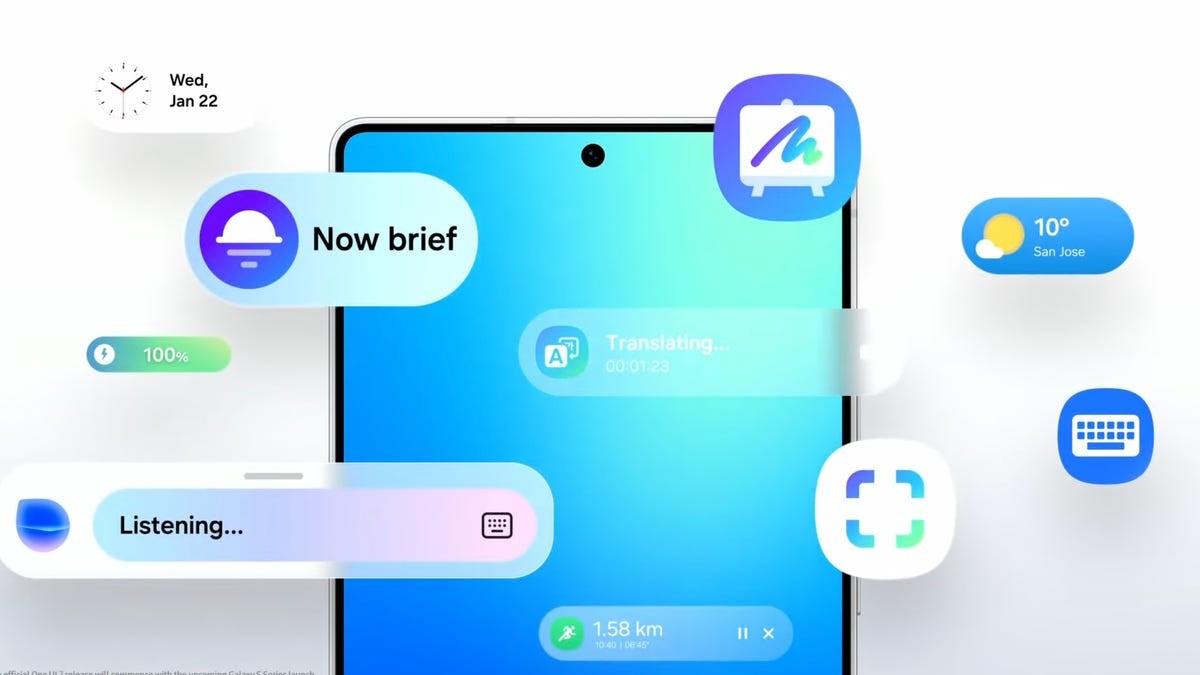
Samsung’s latest Galaxy phones come packed with AI features, but not everyone wants them. If you’re among those seeking to tone down or completely disable AI on your device, this guide offers a straightforward approach.
Managing Galaxy AI Features
Samsung makes it relatively simple to control which AI services remain active. Here’s how to adjust individual settings:
- Open Settings.
- Tap Galaxy AI.
- Select the specific service you want to disable (e.g., live translation, generative edit, circle to search).
- Toggle the switch to “Off.”
This granular control allows users to keep useful AI functions while turning off those they don’t need.
Privacy-Focused AI Settings
For enhanced privacy, Samsung provides an option to restrict AI processing to your device only. This prevents data from being sent to the cloud, but it will disable some AI features that rely on internet connectivity. To activate this setting:
- Navigate to Settings > Galaxy AI.
- Enable the toggle that keeps data processing on-device.
This is ideal if you value local data control over optimal AI performance.
Replacing Bixby with Google Assistant
Samsung’s Bixby voice assistant is another AI component many users may want to disable. Fortunately, you can easily switch to Google Assistant instead:
- Open Settings.
- Tap Apps.
- Select Default apps.
- Tap Digital assistant app.
- Choose Google from the list.
Google Assistant is now your default voice assistant, replacing Bixby entirely.
These steps provide a clear method for tailoring the AI experience on your Samsung Galaxy to your preferences. Whether you’re prioritizing privacy, performance, or simply prefer a less AI-driven interface, these settings give you control over how much AI influences your device.