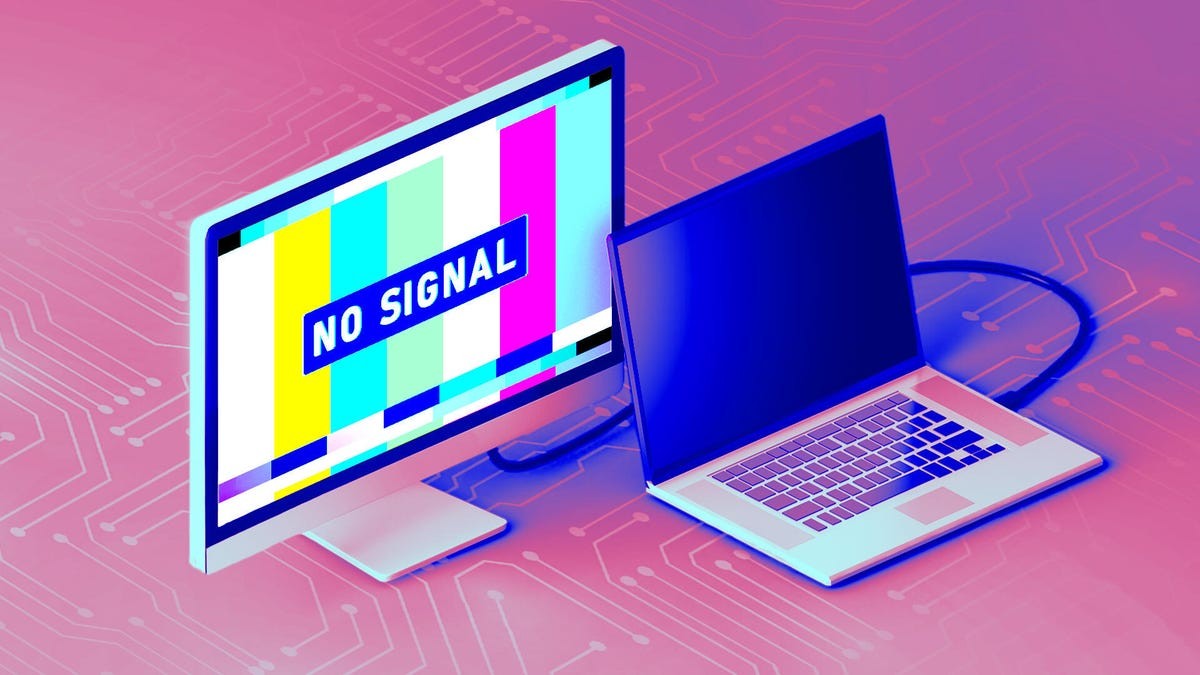
Laptops have become essential tools for modern work and productivity, but relying on external monitors is often necessary for comfortable, long-term use. When a monitor suddenly fails to display a signal from your laptop, the frustration is real. Fortunately, the vast majority of these issues are simple to resolve. This guide outlines a systematic approach to diagnosing and fixing a “no display detected” error, drawing on insights from monitor manufacturers like Asus and ViewSonic.
First Steps: Power and Connections
The most common causes of a blank screen are surprisingly basic. Always verify that both the monitor and laptop are powered on and that the connecting cable is securely plugged into both devices. Cables can work loose, and power cords are easily overlooked. A simple reboot of both devices can often resolve temporary glitches. If using a docking station or USB hub, double-check its power supply and connections as well.
Input Selection: The Hidden Culprit
Once power and connections are confirmed, ensure the monitor is set to the correct input source. Most monitors have multiple inputs (HDMI, DisplayPort, USB-C), and the monitor must be configured to match the cable connected to your laptop. Use the monitor’s physical buttons or remote to cycle through input options until the display appears.
Understanding Display Connections
Today, HDMI is the most prevalent connection type, but DisplayPort and Mini DisplayPort are also common. USB-C has emerged as a versatile option, capable of handling power, data, and video signals through a single cable. However, not all USB-C ports and cables are equal. Some USB-C cables are power-only, and certain laptop ports may not support display output. Try a different USB-C port or use the cable that came with your monitor to ensure compatibility. Consider a full reset of the monitor settings by using the on-screen display to revert to initial defaults.
Inspecting the Cable for Damage
If basic troubleshooting fails, examine the cable itself. Look for physical damage, such as cuts, fraying, or crimping. Damaged cables can cause intermittent or complete signal loss. Inspect the metal pins at both ends for bending or corrosion. Even minor damage can disrupt the connection.
Isolating the Problem: Testing with Alternatives
To determine whether the issue lies with the laptop, monitor, or cable, test alternative setups:
- Connect your laptop to a different monitor using a known-working cable. If the image appears, the original monitor or cable is likely faulty.
- Connect a different laptop or device to the suspect monitor. If the display works, the problem resides with the original laptop’s output.
Software and Drivers: A Less Common Issue
Software glitches can occasionally cause display problems, particularly with graphics cards. Ensure your laptop’s operating system (Windows or macOS) is up to date. Also, update the drivers for your graphics card (Intel, Nvidia, AMD) through their dedicated software. Outdated or corrupted drivers can lead to incompatibility issues, especially after system updates.
Last Resort: Replacement
If all troubleshooting steps fail, the monitor may be defective. While frustrating, sometimes hardware failure is unavoidable. In such cases, replacing the monitor is the only remaining option.
Bottom line: Most monitor issues are straightforward to fix with basic checks. A systematic approach – starting with power and connections, then moving to software and hardware testing – will usually resolve the problem.