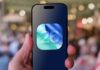
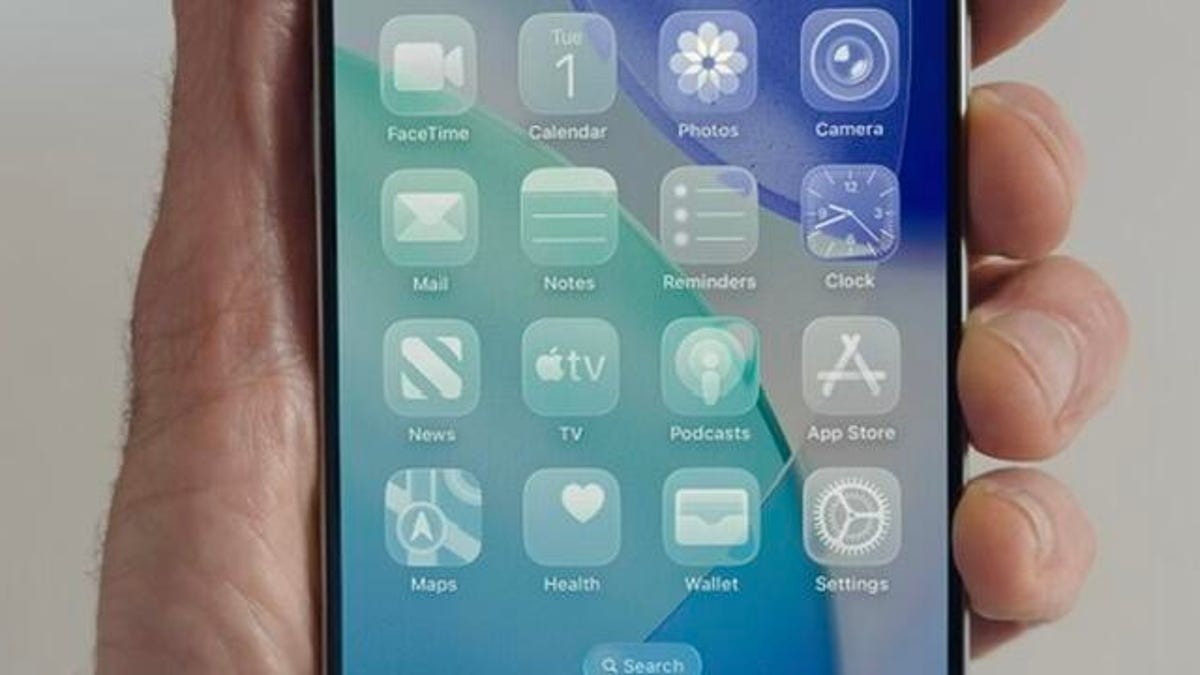
Apple’s latest iOS updates, starting with iOS 18 and continuing through iOS 26, have significantly expanded home screen customization options, allowing users to tailor their iPhone experience like never before. This includes adjustments to app icon appearance, widget clarity, and overall layout. The changes are designed to give users greater control over the look and feel of their devices, building on earlier personalization features.
Removing App Labels for a Cleaner Look
One of the most noticeable changes is the ability to hide app labels beneath icons. This creates a minimalist aesthetic that many users prefer.
To remove labels:
- Enter “jiggle mode” by long-pressing on your home screen background until apps begin to shake.
- Tap the “Edit” button in the top left corner.
- Select “Customize” at the bottom of the screen.
- Tap the two square icons in the top right corner to toggle app labels on or off.
This feature offers a cleaner, more streamlined appearance, and can be easily reversed if desired.
Changing App Icon and Widget Colors
iOS now allows you to alter the color scheme of app icons and widgets with four primary options: Default, Dark, Clear, and Tinted.
- Dark mode applies a nearly black background to first-party Apple apps (Messages, Safari) and some third-party apps (YouTube, Bluesky). This can also reduce screen power consumption and extend battery life.
- Clear makes icons and widgets almost translucent, providing a subtle, modern look.
- Tinted lets you choose a custom hue from a gradient scale or by using the eyedropper tool to match your background color. This allows for highly personalized color schemes.
- Additional options include Light or Dark tints for Clear and Tinted modes, as well as an Auto setting that adjusts based on your system’s light or dark mode preference.
Arranging Apps for Optimal Layout
While the core app arrangement functionality remains similar, the expanded customization options encourage experimentation with layout. Users can still drag and drop apps into desired positions, creating unique arrangements.
Consider these points:
- The grid system prevents overlapping or excessively close app placement.
- Enlarged apps create spacing between the dock and the bottom row of icons, though these gaps cannot be filled.
- Personal preference should guide layout decisions; for example, right-handed users may prefer placing frequently used apps on the right side of the screen for easier access.
These changes are intended to empower users to create a home screen that reflects their individual style and preferences. The new customization features represent a shift towards greater user control and personalization within the iOS ecosystem.